
Contacts by Company
As the number of stored contacts in Outlook increases, the overview becomes less clear.
By default, Outlook displays contacts in the Business Cards view.
By switching to the Phone List view, contacts can be displayed per company.
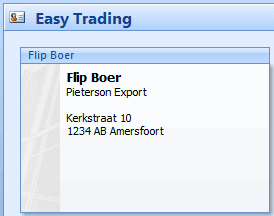
Business Cards view
Contacts in Outlook are displayed by default in the view >> Business Cards. With a small number of contacts this provides a reasonable overview, especially because tabs are included for each letter of the alphabet.
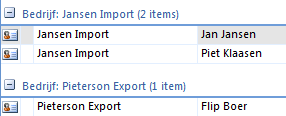
Display contacts per company
An overview of contacts per company can easily be set by choosing the view >> Phone List, adding the correct fields, and setting grouping by company.
Steps for Phone List view
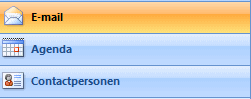
- Go to the folder >> Contacts
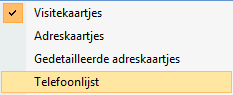
- In the menu choose >> View >> Current View >> Phone List
- The contacts are now displayed in a list
- To group a list by a specific field, that field must be visible in the view. In this example we want to group by company.
- Check whether the field >> Company is already available as a column. If not, add it by right-clicking in the column header

- Select >> Field Chooser to add the Company column

- Drag the field to the column header
Group by a column
- After the Company column has been added, you must set grouping on this column
- Right-click the name >> Company (column header)

- Select >> Group by This Field
- The view now shows the contacts per company
NOTE
The company name must of course be written exactly the same. For Outlook, “Jansen Import BV” is considered a different company than “Jansen Import B.V.”