
Automatic signature Outlook
Back when we sent letters on paper, having a corporate style was standard. But why not apply the same to email? Start by creating an automatic signature in Outlook.
Preparation
- Think carefully about the information you want to include
- Include or omit your job title
- Use international phone number format
- Decide on your policy for mobile numbers
- Include or exclude a disclaimer
How to Set It Up
- Open Microsoft Outlook
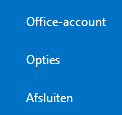
- Go to >> File

- Select >> Options
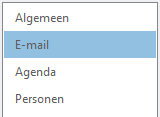
- Click on >> Mail
- Click on >> Signatures
- The Signatures and Stationery window will open
- In this window, you can create and edit your email signatures
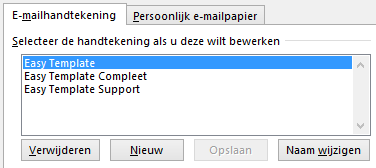
Choosing Which Signature to Use
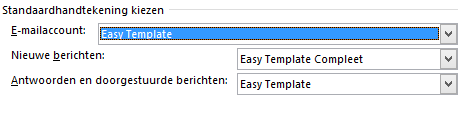
On the right side of this window, you can assign different signatures for each email account. To avoid long email threads filled with repeated signature blocks, you can assign a different, shorter signature for replies and forwards in Outlook.
Benefits
In addition to your name and company information, most people include their website. But Twitter or Facebook links are often forgotten. Add these social media links to your automatic signature in Outlook to make sure your modern communication channels are included.