
Autotext in Word
With AutoText in Word, you can save frequently used texts and insert them into your document whenever needed.
The great advantage is that everyone uses the same texts in the same situations and they are always available. Especially when it is sensitive which text is used, this is the ideal solution.
How to Create and Save AutoText
- Select the text you want to save as AutoText
- Go to the menu tab >> Insert

- Choose >> Quick Parts group >> Text
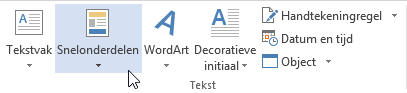
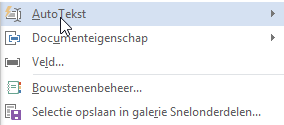
- Select >> Save Selection to Quick Part Gallery
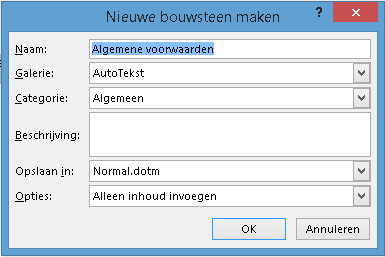
- Enter the name by which you will recognize the text later
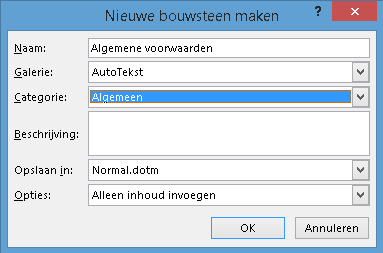
- Click >> OK
Gallery
Choose AutoText here
Save In
By default, Word saves AutoTexts in Normal.dot, but the downside is that when Word crashes, Normal.dot is recreated and you lose your texts. Another disadvantage of Normal.dot is that it is a file per user, so you cannot manage texts used by everyone.
Custom Template
Use one template with all AutoTexts saved inside. By placing this template in Word’s startup folder, the AutoTexts will load automatically when Microsoft Word starts.
How to Insert AutoText
- Open a Word document where the AutoText should be inserted
- Choose Tab Insert >> Group Text >> Option Quick Parts
- Choose AutoText

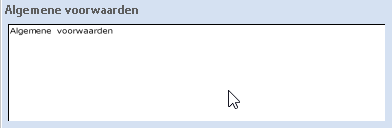
- Select the desired AutoText, in our example that is General Terms and Conditions
When Are AutoTexts Useful
Basically, this feature is useful for texts you need more than once. You get more benefit when using it for example for disclaimers or references to general terms and conditions.