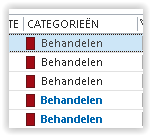
Assign a Color to Emails
Unfortunately, we live in an era with a huge amount of email. Therefore, distinguish between emails sent directly to you and those where you are in CC.
By automatically assigning a color to emails where you are only in CC, you can first handle the most important messages.
Many emails are sent with people in CC. By marking emails addressed directly to you, you can handle them first and prevent them from getting lost among other messages.
Procedure
- In the menu, select the Home tab

- Select the group >> Move
- Choose >> Manage Rules & Alerts
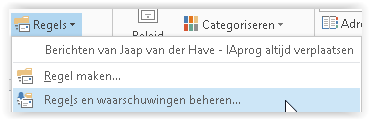
- Click >> New Rule

- Select >> Apply rule on messages I receive
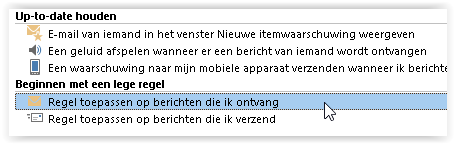
- Click >> Next
- Select the option >> where my name is in the To box
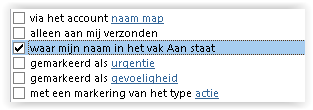
- Click >> Next
- Select >> assign it to the category category
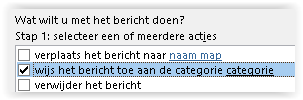
- At the bottom of this screen, choose the category to assign
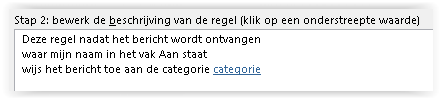
- Click >> Category
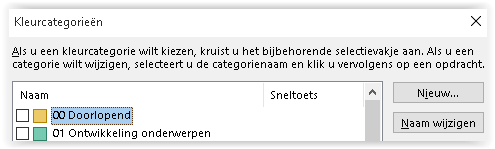
- In the next screen, the categories are shown
- Click >> New
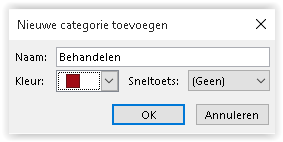
- Give it a name, for example >> Handle
- Choose a color
- Click >> OK
- Check if the category is selected
- Click >> OK
- The wizard now shows the category to be used

- Click >> Next
- In the Exceptions screen, leave everything blank
- Click >> Next again
- Give a name for the rule
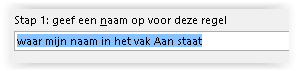
- Select the desired options in step 2
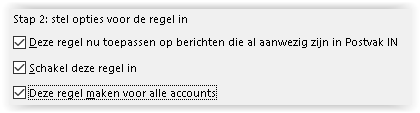
- Click >> Finish
- Outlook will show a message indicating that rules are only applied when Outlook is running, not in webmail
- Click >> OK

- Outlook will now also check existing messages in >> Inbox
- Then click >> OK
- The >> Categories column is now filled for all emails where your address is in To. Emails where you are in CC or BCC have no category