
Centrally Store Templates in Word 2010
A company finally creates standard Word documents (templates) for letters, reports, and proposals — but no one knows where they’re saved. Sound familiar? Here’s the solution.
Tell Word where the templates are stored, and they’ll be available to everyone. You only need to set the template folder once.

Where are the templates stored?
When templates are created for an organization, the goal is for everyone to be able to find them. In Word, you can set which folder is used for shared templates. This is configured once in Word’s settings. Just make sure it’s a folder accessible to all users. Word refers to this folder as “Workgroup Templates,” and it’s defined under the file locations.
Action
Decide which folder will be used for centrally storing the templates and define it under the file locations. Then, by configuring this folder once in the settings for each user, the process becomes consistent for everyone, and the templates will be easily accessible and available across the organization.
Policy
System administrators can apply these settings for all users at once.
Set the default Word template location
- In the menu, go to >> File

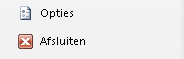
- Select >> Options
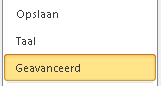
- Go to >> Advanced
- Scroll down to the section >> General

- Click on >> File Locations

- The window that appears shows the file locations Word uses.
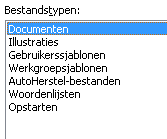
- The location listed under >> Workgroup Templates is the folder Word will use to find templates.
- Select the line for >> Workgroup Templates
- Click >> Modify

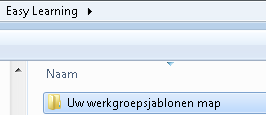
- Select the folder chosen for your (workgroup) templates
- Click >> OK to confirm the setting
- Click >> OK again to return to the Word document
- Word now knows where the templates are stored