
Chapter numbering in Word
Multilevel List Issues
Anyone who works with numbering for chapters and sections in documents will eventually encounter this: the numbering suddenly changes.
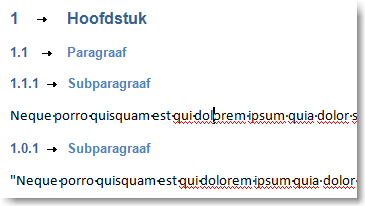
As shown in the image above, the paragraph numbering is not continuing correctly. In that case, there’s only one solution: reset it.
The Reason
- The document uses multiple list numberings and list styles.
The Cause
- Copying from other documents without using Paste as Text. This also copies the formatting, including the numbering, into the new document.
- No proper Word template. When every document is created from a clean and well-structured template, users can add content without issues.
Solutions
- Copy the formatting from Heading 1 to the other levels
- Reset numbering for the level
- Create a new list style and link it to the document
Create a New List Style
A list style is essentially a group of styles. In most cases, they are used for chapter numbering. Word supports nine levels of headings—Heading 1 through Heading 9. These styles normally function independently, but a list style defines that they belong together and whether the numbering should continue across levels.
A list style defines:
- Which format is used, such as 1., a., or Roman numerals
- What text should precede the numbering, for example “Chapter”
- How far the text should be indented from the margin
Steps to Follow
This method involves several steps and is intended for experienced Word users or those accustomed to working with templates.
- How to create a list style
- How to set numbering for chapters
- How to set numbering for levels 2 through 9
- How to adjust indent settings
- How to link headings to a list style