
Clean Up Mail – Show All Large Messages
We save a lot of emails. Many of these messages contain attachments (photos, PowerPoint) that are already stored on the network. These emails can be deleted.
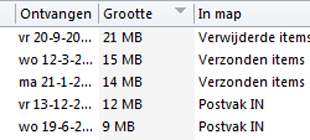
Outlook can generate a list of all emails that are, for example, larger than 1 MB. By reviewing and deleting all email messages over 1 MB, you can free up a significant amount of space in your mailbox.
Video
Watch the following Outlook tutorial for a quick walkthrough:
Steps
- Open Microsoft® Outlook
- Go to File

- Click on Mailbox Cleanup Tools
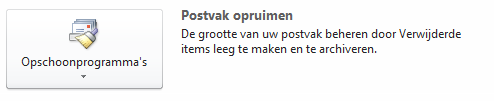
- Select Mailbox Cleanup
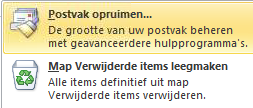
- The Mailbox Cleanup window will appear
- Select Find items larger than
- Enter 1000 (1000 KB = 1 MB)

- Click on Search
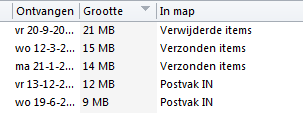
- You will now see all emails larger than 1000 KB
- The folder containing the email will also be shown
TIP
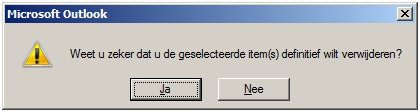
When using the DELETE key to remove a message, it is moved to Deleted Items. If you use <SHIFT>+<DEL>, the message is permanently deleted.
When is this useful?
This tip is helpful when an entire email with attachment can be deleted.
When is this not useful?
Sometimes the attachment is saved on the network, but the email message itself contains valuable information. In such cases, do not delete the entire email—just remove the attachment and save the email again.