
Clean Up Outlook: Set an Expiration Date
Assign expiration dates to email messages and periodically delete all expired ones.
Outlook mailboxes keep growing. Sometimes even too much. So make sure messages don’t stay in your Outlook longer than needed. Some messages are worth keeping — but not forever. Add an expiration date to make it easier to remove them later. This also works for saved messages already filed in folders.
Instructions
- Open the email message

- Select >> File

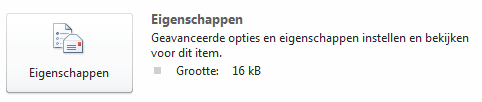
- Select >> Properties
- A window opens with the message options
- Go to the section >> Delivery options
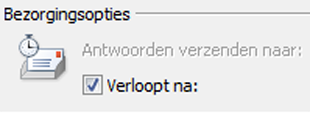
- Click >> Expires after:
- Enter a date and time when the message should expire

- Click >> Close

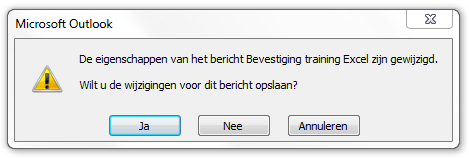
- Since the message was changed, Outlook will ask if you want to save the changes when closing it
- Select >> Yes
- Once the expiration date is reached, Outlook will strike through the message
