
Comparing Documents in Word
Two documents for the same contract. One is “version 3” and the other “final version 2“. Which one is the latest and, more importantly, what are the differences? Word 2010 provides the answer.
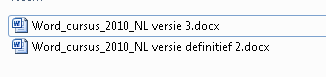
In our example, we use 2 documents:
- Word_course_2010_EN final version 2.docx
- Word_course_2010_EN version 3.docx
Download example files
The safest approach is to place the documents to compare in one folder (a copy of the original files is fine).
How to compare documents in Word
- Put the files in one folder or determine where the documents to be compared are stored
- Open >> Word
- Go to the tab >> Review

- Go to the group >> Compare
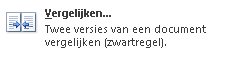
- Click on >> Compare

- Select >> Compare two versions of a document
- A screen appears where the two documents to compare can be selected.
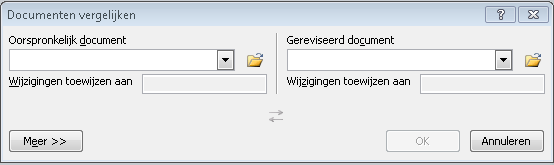
- The documents can be easily selected by clicking the folder icon next to the input field.
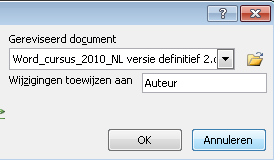
- Press >> OK to search for differences between the two documents
- The differences are shown
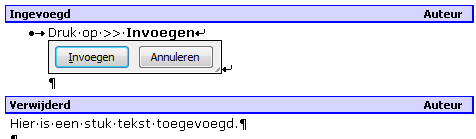
- The differences are also displayed in the document, where they can be accepted and removed.