
Create a List Style in Word
- Open the document (template)
- Select the first heading at the highest level
- On the ribbon, go to the Home tab
- In the Paragraph group, click the dropdown for Multilevel List
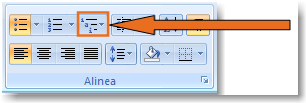
- Do not use the other numbering buttons, as these can cause formatting issues
- Select Define New List Style
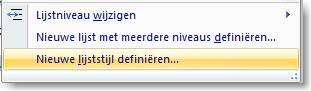
- The Manage Styles window will appear
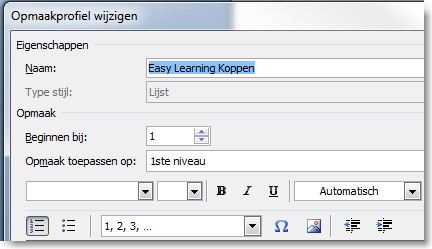
- Enter a name that makes the style easy to recognize later. In our example, we use Easy Learning Headings.
- Then choose Format > Numbering
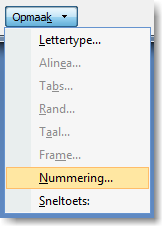
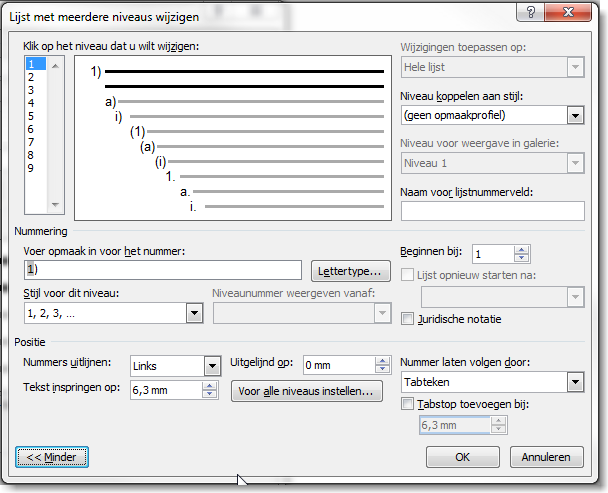
- The Modify Multilevel List window opens
- Click More in the lower left corner to expand the full options
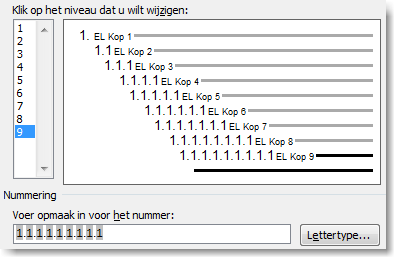
- Assign a style to each level
- Click the level on the left that you want to modify and link it on the right under Link level to style with Heading 1, Heading 2, etc.
- You’ll immediately see the result in the preview
Steps to Perform
This procedure consists of several steps and is intended for users who have worked with Word for some time or are familiar with Word templates.