
Create charts in Excel 2007
Charts in Excel make data overviews easier to read and more user-friendly for the recipient. Creating charts in Excel is fairly simple in principle, but you can make them as advanced as you like.
Sample files available
The following file is available for this topic:
Steps to create a chart in Excel
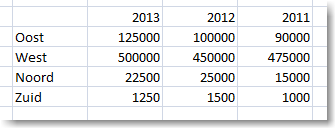
- When you want to create a chart in Excel, preparation is the most important step. Determine which data should be displayed in the chart. Then make sure the data is arranged as one block next to and/or below each other in the Excel worksheet
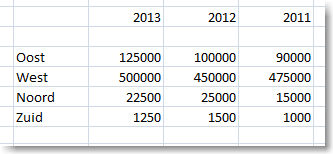
- If there are empty rows and/or columns in the data, Excel cannot automatically determine which data belongs together and which data should be used as labels
- In our example, the years are placed directly above the data, as shown below
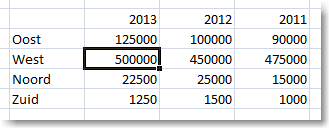
- Select a cell within the data range
- Go to the tab >> Insert

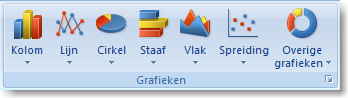
- Go to Charts >> Column
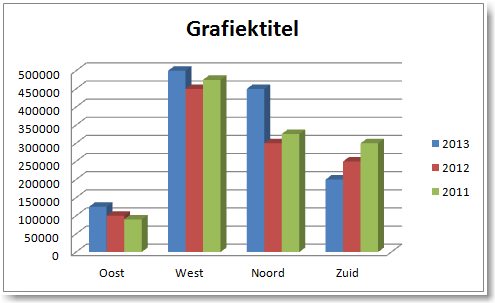
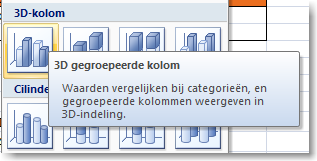
- In this example we create a 3D column chart
- Select the desired chart type
- In the worksheet you can immediately see which data Excel uses for the chart
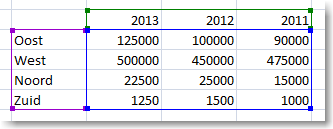
- If there is a blank row in the data, you will immediately see that the years are not recognized as a series
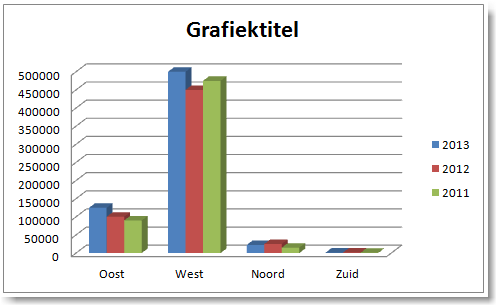
- Excel now displays the chart
Change data in a chart
The chart remains linked to the data. When the data is changed or extended, Excel automatically updates the chart.
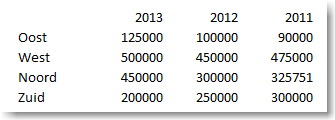
- In our example, the data has been modified
- The chart is updated immediately