
Labels in Word 2010
Creating labels in Word from Outlook Contacts is really easy with this work instruction.
When the holidays are approaching, everyone is busy updating all kinds of Excel sheets with the latest contact details. A time-consuming and unnecessary task. If you use Outlook Contacts, creating labels for Christmas cards or other mailings is a breeze.
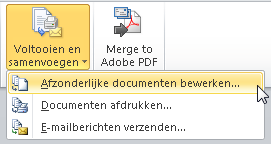
Work Instruction: Creating Labels
- Open >> Microsoft Outlook
- Go to >> Contacts
- Select the contacts you want to create labels for.
TIP
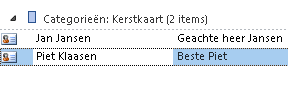
If your contacts are grouped into categories, it’s even easier to select them. In this example, the contacts are tagged with the category >> Christmas Card
- From the menu, choose >> Tools >> Mail Merge
- Select the tab >> Home
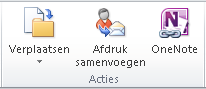
- Go to group >> Actions and click >> Mail Merge
- Choose >> Only selected contacts
- Choose >> All contact fields
- Under Document file, choose >> New Document
- Under Document type, select >> Mailing Labels
- Under Merge to, choose >> New Document
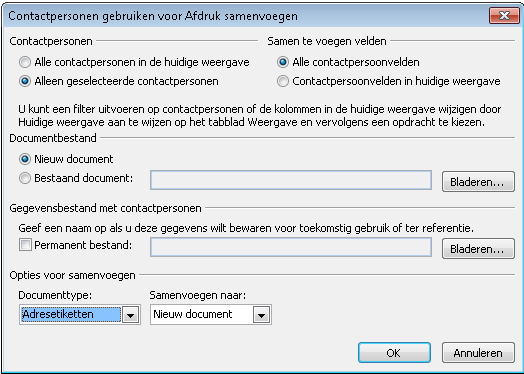
- Click >> OK
- Outlook now creates a >> link to Word
- Select that document
- A message appears: Outlook has created a document …
- Click >> OK
- A window appears titled >> Mail Merge
- Click >> Set Up
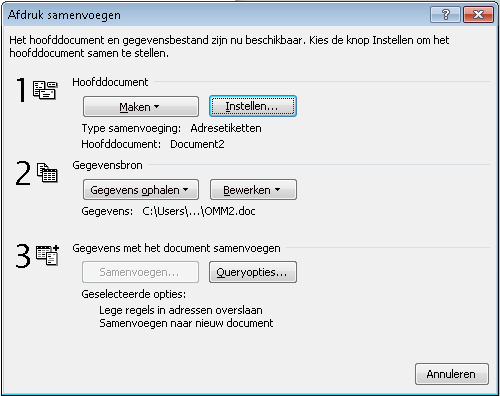
- A screen appears where you can select the label format
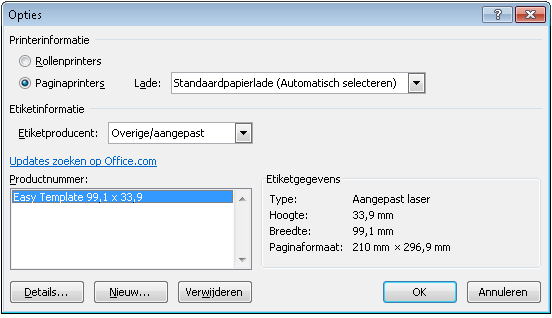
- Choose your label brand under Label vendor
- If it’s not listed, click >> New to create a custom label
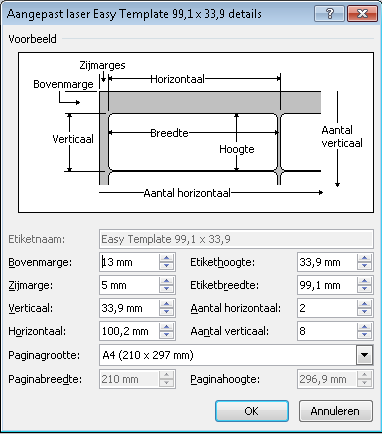
- In the next window, enter the dimensions and number of labels. This tells Word exactly how the label sheet is formatted.
- Click >> OK
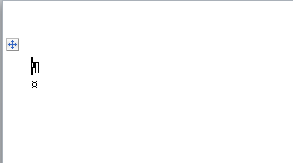
- Word now displays a document with the label layout
- Now decide which fields to place on the label
- Click into the first label and insert merge fields using >> Insert Merge Field
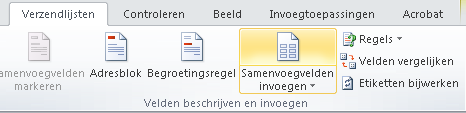
TIP 1
Use the field >> Full_Name for the name. If you place first name, middle name, and last name separately, you might get extra spaces.
TIP 2
Use the field >> Address_for_address_list. This combines street, postal code, and city into one field. It’s the default address for each contact.
- The first label is now ready
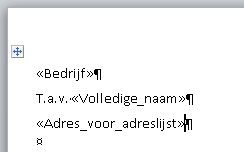
- Click >> Update Labels to copy the merge fields to all labels

- All labels now contain the merge fields
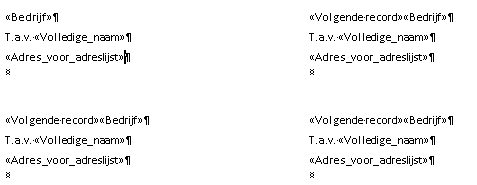
- From the menu, select >> Finish & Merge >> Edit Individual Documents

- This creates a new document with all the completed labels ready for printing without wasting label sheets on errors.
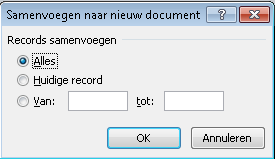
- In the next screen, choose >> Merge to New Document >> All
- Click >> OK
- The result is a new document with all the labels ready to print.