
Create a PivotTable in Excel
Using an example, we’ll show you how to create a PivotTable in Excel. Including a helpful instruction video on YouTube.
We want to see the revenue of a region broken down by customers.
Instruction video
Sample file
Download the sample file to follow along:
Steps to create a PivotTable
- Open the sample file
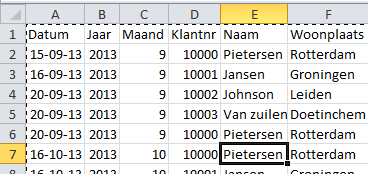
- Select the tab >> Excel example
- Select any cell in the data area, for example cell B3
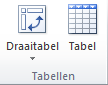
- Go to the tab >> Insert

- Navigate to the group >> Tables
- Click on PivotTable
- If your data is well structured, Excel will suggest the table/range based on the sample
- Select >> New Worksheet
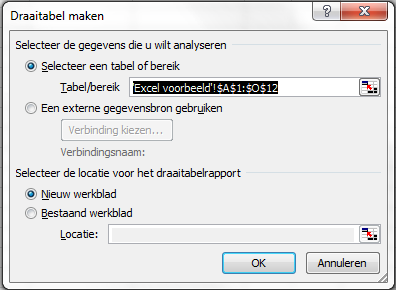
- Click >> OK
- The PivotTable is now created, but it doesn’t contain any fields yet
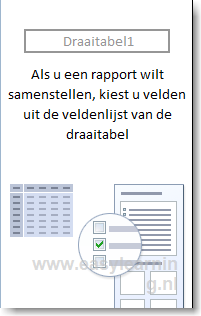
- Drag fields into the designated areas to populate the PivotTable
- Drag field >> Region into the Report Filter

- Drag field >> Name to the Row Labels area
- The left side of the PivotTable will now start to populate

- Drag field >> Revenue to the Values area
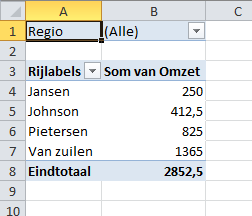
- The PivotTable now shows totals per customer
- We also want to see revenue by product group
- To do this, drag the field Product Group to the Column Labels
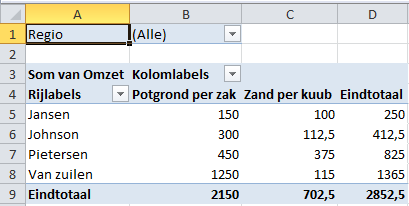
- Using the various filters, you can slice and dice the data however you like