
Charts in Excel 2010
Charts in Excel make overviews more readable and visually appealing for the recipient. Creating charts in Excel is fairly straightforward. Here’s how to do it.
But you can make them as complex as you like.
Sample files available
The following files are available for this topic:
Steps for creating a chart in Excel
- Before creating a chart in Excel, it’s important to prepare your data. Decide which information should be shown in the chart. Then, make sure the data is arranged in a single block either horizontally or vertically in your Excel sheet.
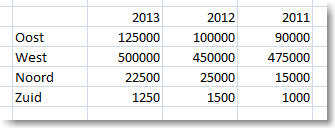
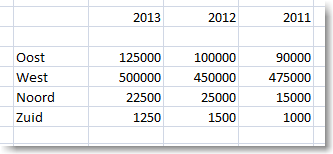
- If the data contains empty rows or columns, Excel won’t be able to automatically determine which entries belong together or which ones to use as labels.
- In our example, the years are placed directly above the data, as shown below.
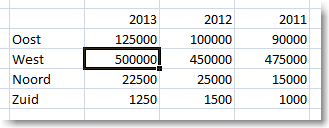
- Select a cell within the data range.
- Go to the Insert tab.

- Then go to Charts >> Column.
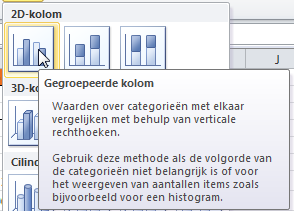
- In our example, we’re creating a 3D Column Chart.
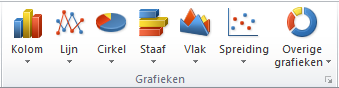
- Select the desired chart type.
- You can immediately see which data Excel uses for the chart.
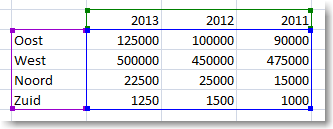
- If there’s a blank row in the data, you’ll notice that the years are not recognized as a series.
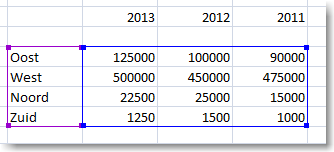
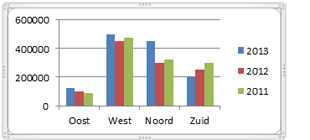
- Excel now displays the chart.
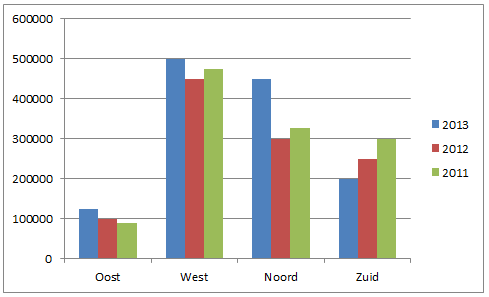
Modifying data in a chart
The chart remains linked to the data. When the data is edited or expanded, Excel automatically updates the chart.
- In our example, the data has been updated.
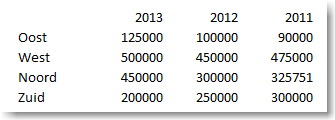
- The chart is updated immediately.