
Custom toolbar in Word 2007
A custom toolbar in Office with your most-used commands. Starting with Office 2007, every user can create their own toolbar. This new feature is called the Quick Access Toolbar. You’ll learn how to use it in this article.
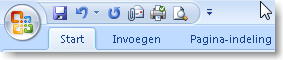
Custom toolbar per user At the top of the screen is the Office button. Next to the Office button are a few icons for certain Office functions. All the way to the right is a dropdown menu that lets you add commands. Another way to customize the Quick Access Toolbar is by adding functions from the Ribbon. Both methods are explained below.
Add commands to the Office toolbar
- Click the arrow on the right side of the toolbar
- Clicking commands will add them to the toolbar
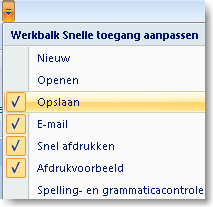
- Clicking commands again will remove them from the menu. Commands with a checkmark are shown on the toolbar.
- Click >> More Commands to see all available options
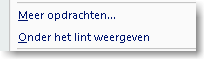
- The list is quite long, but with some searching, anyone can find the desired command.
- Use the button in the middle of the screen to quickly move commands around.
- Then click >> OK to close the window
Add commands from the screen
- Go to the command on screen that you want to add to the toolbar
- In this example, we’re adding the command >> Create Labels in Word to the toolbar
- This command can be found in Word under >> Mailings >> Labels
- Right-click on the command >> Labels
- A context menu appears
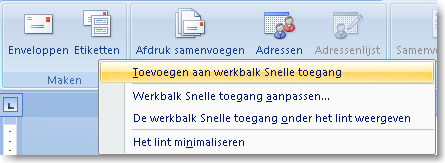
- Select >> Add to Quick Access Toolbar
- The Labels command is now added to the toolbar
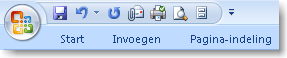
- Repeat this action for your other most-used commands
- Your custom toolbar in Word is now ready