
Display Gmail Account in Outlook
Use Gmail for your shared calendar
Set up Gmail Account in Outlook
You can use a Gmail account as your personal email address, but also as a secondary address to share a private calendar. Here’s how to link it to Outlook.
Gmail Account
Before you can link a Gmail address to Outlook, you need to have an existing Gmail account.
Video Tutorial on Easy Learning YouTube Channel
- A video tutorial for this tip is available on the Easy Learning YouTube channel
- Go to >> EasyLearningNL Video Channel
How to Set Up Gmail in Outlook
- Open >> Microsoft Outlook
- Go to the tab >> File

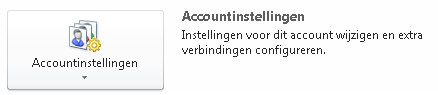
- Select >> Account Settings
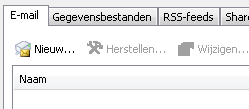
- Select the tab >> Email
- Click >> New
- Enter your account details
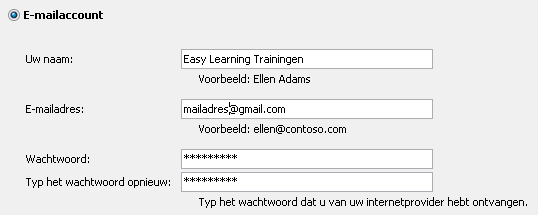
- Click >> Next

- Outlook will now automatically retrieve the server settings and show the progress on screen
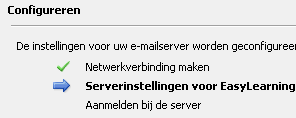
- Once everything is complete, all options will show checkmarks
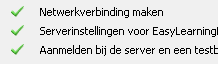
- A new mailbox is now added in Outlook. This is an IMAP-type mailbox
- IMAP means that your data (email, calendar, etc.) on the Google server is synchronized with your PC. It essentially creates a copy that stays in sync. This way, you can access the same data from multiple devices (usually a PC and a smartphone or tablet).

- Your account is now connected and ready to use