
Excel 2010 Function: COUNTIF
In Excel 2010, you can count how often a specific value appears using the Excel function COUNTIF.
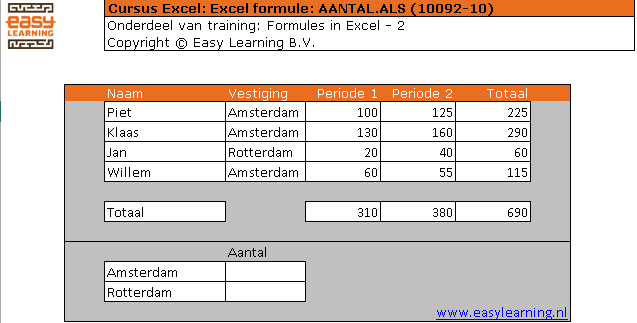
With this function, you specify where to look and which value to search for. In our example, we want to know how many times the value “Amsterdam” appears in the list, and how many times “Rotterdam” occurs.
Function Wizard
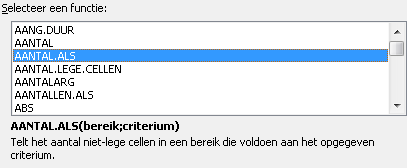
Excel’s Function Wizard provides the following explanation for this formula:
COUNTIF(range, criteria) Counts the number of non-empty cells in a range that meet the specified condition.
Explanation of This Formula in Plain Language
The description in Excel’s Function Wizard isn’t always clear. Let’s clarify: this formula counts how many times a certain value (criteria) appears in a specified range. The part that says “counts the number of non-empty cells” can simply be read as “cells with content.”
Example File
An example file is available for this topic.
The Formula Explained Step by Step
Formula in cell D15: =COUNTIF(D7:D11,”Amsterdam”)

- = → starts a formula
- COUNTIF → indicates which function is being used
- ( → opens the function arguments
- D7:D11 → the range to be searched
- , → separates the arguments (in English Excel)
- “Amsterdam” → the value being searched for
- ) → closes the function
TIP 1
“Amsterdam”: this is the value to look for. It can be a text string (like this example), or a reference to a cell.
TIP 2
The data is in cells D7 through D10. Since the formula only checks non-empty (filled) cells, we’ve extended the range to D11. If a new row is later added to the list, the formula will automatically include it. If we had kept it at D10 and then added data to row 11, the formula would not update automatically.
When This Excel Formula Is Useful
This formula is commonly used to create summaries. For example, in an action list with 300 rows, you can quickly see how many actions are completed by checking a column with status values.