
Excel 2010 Function: SUMIF Explained
The SUMIF function is used to calculate a total from a column if a condition is met in another column.
As with all other Excel formulas, the best way to explain how it works is through an example.
Example File
A sample file is available for this topic.
- Open this sample file to better follow the explanation
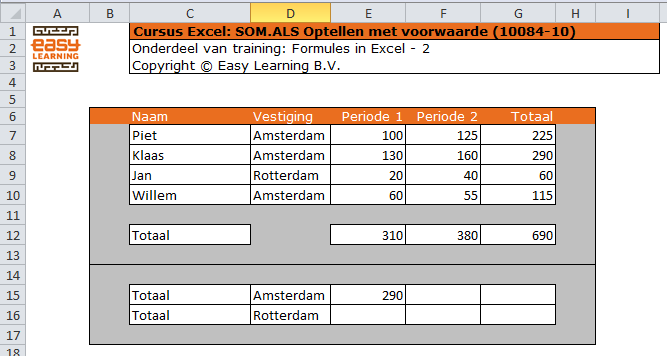
The example contains four rows with information. It shows the stock of notepads per person. To find out how many notepads are available per location, you need to perform a sum calculation.
What Not to Do
Avoid using formulas that add individual cells in the total column. In this example, the formula =G7+G8+G10 technically works, but if you add a new row to the list, the formula becomes inaccurate.
What to Do Instead
Use the SUMIF formula. This function sums values based on a condition. By including an extra empty row in the defined ranges, the sum range automatically expands when you add new rows.
Formula Explained
In this example, you can calculate the total for Amsterdam across all periods using the formula =G7+G8+G10. For Rotterdam it’s even easier, since it’s just one cell. But what if there aren’t 4 rows of data, but 4000? Then this approach is no longer practical, and that’s where Excel’s SUMIF function is very useful.
The Formula for Amsterdam (in cell G15)
In this case, the formula is =SUMIF(D7:D11,”Amsterdam”,G7:G11)
This formula means: if the value “Amsterdam” appears in cells D7 through D11, then sum the corresponding values from the same rows in cells G7 through G11.
Breaking down the formula:
- = → indicates the start of a formula
- SUMIF → specifies the function being used
- ( → marks the beginning of the arguments
- D7:D11 → the range to evaluate
- , → separates the arguments
- “Amsterdam” → the value you’re looking for
- , → separates the arguments
- G7:G11 → the range to sum if the condition is met