
Calculating Age in Excel
How often do you need to know someone’s age? If you know the date of birth, Excel can calculate it for you.
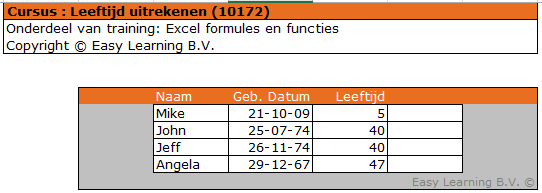
Sample File
A sample file is available for the example below. Download it here
How old is someone today?
If you have a list of people and their date of birth, you can always show how old (or young) someone is today.
The formula
=DATEDIF(E7,TODAY(),”y”)
Formula explained:
-
- = -> indicates the start of a formula
- DATEDIF >> to subtract 2 dates
- E7 >> contains the date of birth to compare
- TODAY() >> returns today’s date
- “y” >> expresses the difference between the 2 dates in years
How old is someone on a specific date?
This is very useful when calculating membership fees based on age or granting extra leave days based on age.
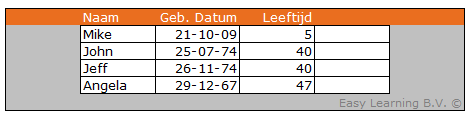
Replace TODAY() with a reference to the cell containing the reference date
The formula for Mike
=DATEDIF(E15,$E$13,”y”)
Formula explained:
- TODAY() is replaced by E13
- We made E13 an absolute reference so you can copy the formula down without having to change it afterwards
Problem with empty date field
When the field where the date of birth should be is empty, Excel still returns an age.
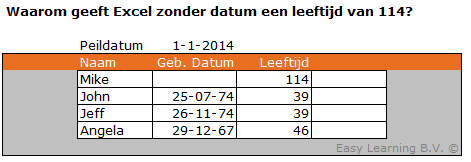
To be able to calculate with dates, Excel assigns a number to every date. January 1, 1900, is the first day Excel counts from. So it’s not surprising that this day is number 1. When you compare an empty date with a reference date, Excel calculates the age (DATEDIF) from 01-01-1900 to in this case 01-01-2014.
Solution
This can be solved by nesting the original formula inside an IF formula.
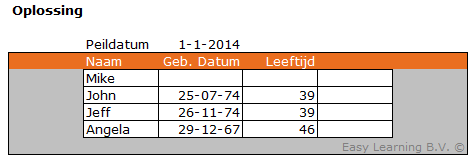
The formula becomes: =IF(E36=0,””,DATEDIF(E36,$E$34,”y”)), where E36 is the cell with the empty date value.
Simple explanation
This formula checks if cell E36 has the value 0. If so, it returns an empty result. If not, so if there is a date, it executes the (original) formula.