
Excel: display day from date
Display the Day from a Date
To ensure the day of the week is shown when entering a date, you need to use a function.
Formula Breakdown
- Assume a date is entered in cell D9
- We want to display the day of that date in cell E9
- The formula would be: =TEXT(D9,”dddd”)
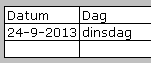
The formula explained
To make this formula accessible for everyone, here’s an explanation of each part:
Start with the symbol: =
This indicates the start of a formula
TEXT
This calls the TEXT function to convert a value into text
The symbol: (
This starts the argument section
D9
This is the cell containing the date from which we want to extract the day
The symbol: ,
This separates the arguments in the formula
Argument: “dddd”
This specifies that the full day name (Monday, Tuesday, etc.) should be shown
The symbol: )
This closes the argument section
When is this useful?
This function is helpful when creating a schedule. On one hand, it helps ensure you’re not scheduling tasks during the weekend. On the other hand, for things like event setups, it’s more useful to know what happens on Monday or Tuesday rather than just seeing a date. The day adds necessary context.