Excel formula: Convert text to date
Exported data from another system and no date formatting in Excel? Here’s the solution.
When Excel uses data imported from other systems, display issues can occur. Sometimes they’re easy to fix, and sometimes a bit more complex.
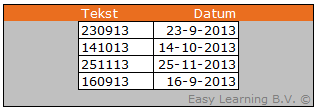
Example
This example explains how to convert a text-formatted field into a date. In our example, the base data includes a leading apostrophe in front of the text.
NOTE
This topic is for more advanced users! So no worries if it’s not immediately clear.
How it works
- Assume cell D7 contains a text that should be a date
- In cell E7, we want to display the date in date format so it can be used in calculations
- The formula would be =DATEVALUE(MID(D7,1,2)&”-“&MID(D7,3,2)&”-“&MID(D7,5,2))
Formula breakdown
To make this formula easy to understand, here’s an explanation of each part:
Start with the symbol: =
Indicates the beginning of a formula
DATEVALUE
This function converts a text string into a date value
The symbol: (
Marks the beginning of the arguments
MID(D7,1,2)
This extracts the first two characters from the text in cell D7 — used for the day part of the date.
&”-“&
The ampersand (&) combines strings. This part adds a dash (-) between the components.
MID(D7,5,2)
This extracts the last two characters (typically the year) from the text in cell D7.
The symbol: )
Closes the argument list. This completes the DATEVALUE function.
Set cell formatting
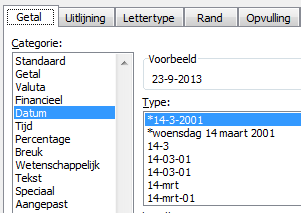
After the date is displayed in the cells, all that’s left is choosing the right formatting.
Click on Format Cells (CTRL+1) to open the formatting menu. Here, you can choose your preferred date format, such as two-digit or four-digit year display, and more.