Excel Formula Day of a Date
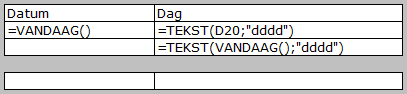
To ensure that the day is displayed after entering a date, a function must be used. In your Excel formula, use the TEXT function.
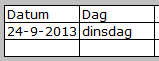
Example File
Solution
- Assume a date is entered in cell D9
- In cell E9, we want to display the day of that date
- The formula in cell E9 will be =TEXT(D9,”dddd”)
Formula Breakdown
To make this formula clear for everyone, below is an explanation of each part of the formula.
Start with the symbol: =
To begin a formula
TEXT
Calls the TEXT function to convert a value to text
The symbol: (
Start of the argument section
D9
The cell containing the date whose day we want to determine
The symbol: ;
Separates arguments (components) within the formula
Argument: “dddd”
This argument specifies that the day (Monday, Tuesday, etc.) of the linked date should be displayed
The symbol: )
End of the argument section
When This Is Useful
This function is used when creating a schedule. On one hand, it helps you avoid planning on weekends. On the other hand, when, for example, creating a setup schedule for a trade fair, it is helpful to know what tasks need to be done on Monday versus Tuesday. A date alone doesn’t provide that context.
Using Today’s Date
Now we assume the date is in another cell. But instead of a cell reference, you can also have Excel automatically display today’s date.
- Use the TODAY() function
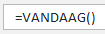
- Fully integrated, the formula becomes: =TEXT(TODAY(),”dddd”)