
Excel: Freeze Panes
Freezing the top rows in Excel is called Freeze Panes, and here’s how you use it. With video instruction!
Excel 2010 TIP: Freeze Top Rows
This is one of the most searched-for features in Excel. That’s why it always comes up in our courses, and every time it gets a big “Oh yes!” reaction.
Example File
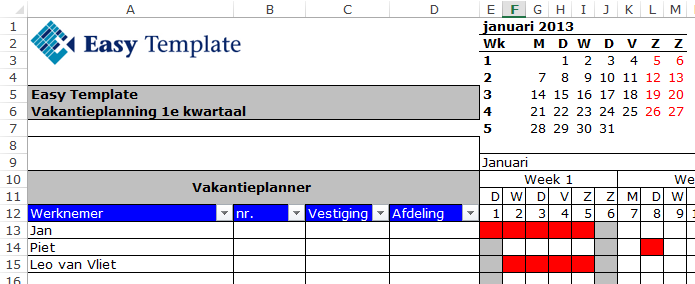
In our example, we use a vacation planner. The rows contain data per employee and the columns represent the days. In this case, we want both the first columns and the top rows to stay visible when scrolling right or down. By freezing the titles in Excel, the text essentially scrolls underneath the titles.
Excel Course: The Module as YouTube Instruction
How to Freeze Panes on Screen
- Open an >> Excel worksheet
- In this example, we use a >> Vacation Planner
- Leo van Vliet is off for 4 days, but you want to see exactly when that is

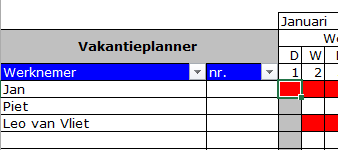
- Select the cell where the columns to the left and rows above should be frozen
- In our example, that is >> E13
- Choose the tab >> View

- Go to the group >> Window
- Click >> Freeze Panes

- Select >> Freeze Panes
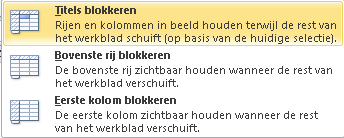
- The columns to the left of the selected cell and the rows above are now frozen on the screen.
When to Use
When an Excel worksheet contains many rows and is longer than one screen or A4 page, it’s always difficult to know which data belongs to which column.
The solution is very simple: freeze the titles in an Excel document. This can be set for both on-screen viewing and printing.
More Than One Page Wide
If a worksheet is wider than one page, it’s wise to also freeze the left side, so that each row clearly shows what information it relates to.