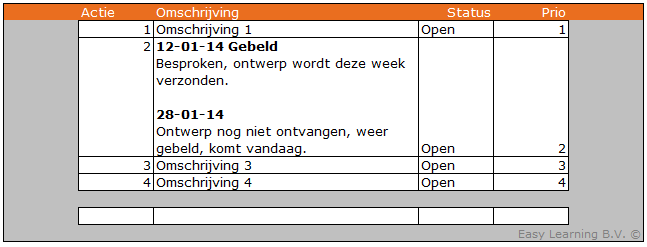
Excel multiple lines in one cell
Formatting text in Excel cells can be a bit tricky. Adding an extra line in a single cell keeps things organized.
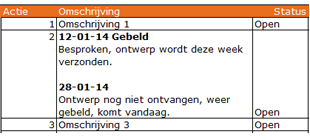
Example task list: multiple lines in 1 cell
Suppose you have a task list in Excel. It likely contains columns to describe the task and a column for comments. There are several ways to improve the text layout. Below are a few examples to enhance clarity. We’ll go into detail on the option >> multiple lines in a single cell in this article.
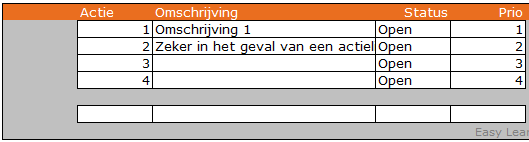
Make the column wider
If one column contains more text than another, widening the column doesn’t help much. You’ll sacrifice too much space and run into printing issues later.

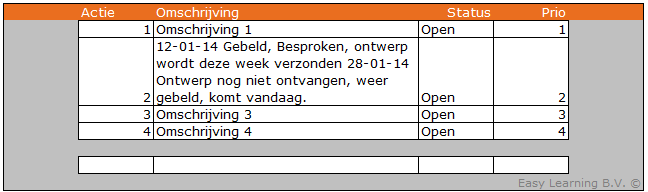
Text wrapping in a cell
The most straightforward way is to set the cell to >> wrap text. This means that when the text reaches the end of the column, it continues on the next line within the same cell.
Wrap text combined with ALT+ENTER
The key combination ALT+ENTER creates a so-called soft return. When wrap text is also enabled in the cell, it results in a clear and organized layout.