
Remove Duplicates in Excel
You have a list of data, but it contains duplicate values. Here’s how to get a list with only unique values.
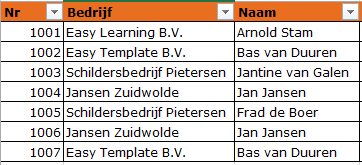
Practical Example
This option for filtering duplicate values in Excel is typically used when working with lists. Think of address lists for a mailing. A good example might be a company that is moving and wants to send a message to all contacts. Everyone has submitted their contacts or they have been exported from Outlook. You don’t want to send the same mail twice.
Instruction: Remove Duplicates in Excel
- Create an address list including all data
- Select the data including the column headers (*1)
- Select the tab >> Data

- In the group >> Data Tools choose >> Remove Duplicates

- Excel will show the dialog box >> Remove Duplicates
- The option >> My data has headers is already checked

- Excel selects all columns to check for duplicates

- In this case, it wouldn’t result in any duplicates because each row has a unique number, so make sure that column is unchecked
- In our example, we want to filter by the E-mail column (*2)

- Click >> OK to confirm
- Excel will then show the results of removing duplicate values
- Click >> OK to return to the worksheet

- You can undo this action with CTRL+Z
- Of course, do this before saving the worksheet
VIDEO
The video below explains how this tip works.

Tips and Notes
TIP
Before performing deduplication and deletion actions, make sure to keep a copy of the original file.
(*1) Note (*1)
If all cells in the data list are continuously filled, you can also select any cell. When choosing >> Remove Duplicates, Excel will automatically detect and select the range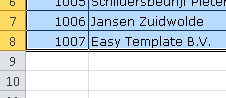
(*2) Note (*2)
In this example, we only want to send one email per address, but if multiple people share an info address within a company, you could first try to find each person’s individual email address.