
Excel rounding function
Excel performs calculations using many decimal places. However, the displayed result may not reflect the actual value being used in the calculation. This article explains how Excel handles rounding.
Example File
Excel works best with examples. A sample file is available for this Excel tip:
How It Works
The value displayed in a cell may not always match the actual value used in calculations. You can adjust the number of displayed decimal places using the Home tab >> Number group.
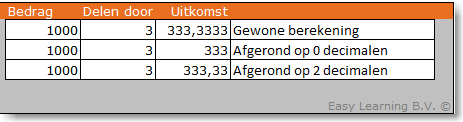
- In this example, we show the same calculation producing different results
- In column D, all values are 1000 and are divided by the values in column E
- In our example, the value in column E is 3
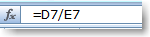
- The formula in the first row is =D7/E7
- The result in cell D7 is 333.333333333
- The number of decimals shown depends on the cell formatting
Round to 0 Decimal Places
- The result in cell F8 is rounded to 0 decimal places using the formula: =ROUND(D8/E8,0)

- Start with the equals sign (=) to indicate it’s a formula
- ROUND is the function
- Inside the parentheses, first specify what should be rounded
- Then a comma (,)
- Then specify the number of decimal places to round to
Round to 2 Decimal Places
- In cell F9, we want to round the result to 2 decimal places
- You can copy the formula from F8 to F9 and just change the number of decimal places
- The formula becomes: =ROUND(D9/E9,2)

Tip
To quickly copy a formula down, use the keyboard shortcut CTRL+D while in cell F9. This will copy the content from cell F8 down instantly.