
Excel subtotals
The SUBTOTAL function is used in Excel to calculate subtotals in a list. But Excel can also display subtotals without using any functions or formulas.
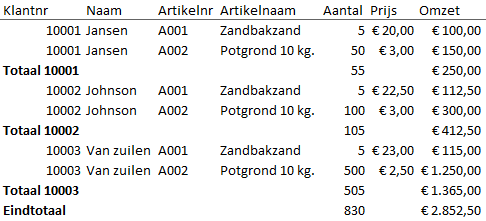
Quick Overview
Instead of using a formula or function, Excel also allows you to show a list in different grouped views. Under the Data tab, there’s a Subtotal option within the Outline group.
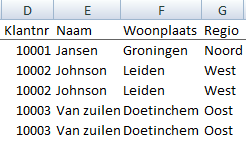
This feature adds automatic subtotals to your data. Note: your list must already be sorted by the column you want subtotals for. In this example, we use a sales overview and want to see totals per customer for both revenue and quantity delivered.
Sample File
A sample Excel file is available for this section:
Step-by-Step Instructions
- Make sure the list is sorted by customer number
- Go to the Data tab

- Go to the Outline group

- Select Subtotal
- The Subtotal window will appear
- Set your preferences step by step
- Under At each change in:, choose Customer Number

- Under Use function:, select Sum

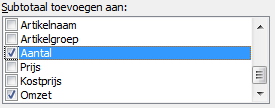
- Under Add subtotal to:, check the boxes for Quantity and Revenue
- Check the box for Replace current subtotals
- Leave Page break between groups unchecked
- Check Summary below data
- Click OK

- The list will now display subtotals per customer for the Quantity and Revenue columns