Export Outlook contacts to Excel
This section is best explained using an example. Download the sample file below:
Multiple ways to achieve the same goal
As with many tasks, there are multiple ways to accomplish this. You can also create a mailing or print labels directly from the Contacts folder. That is covered in a different topic.
Exporting Outlook contacts
- Go to Contacts
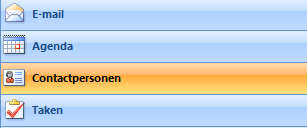
- Select the folder where your contacts are stored
- Go to File

- Select Import and Export

- The Import and Export Wizard will launch
- Select Export to a file
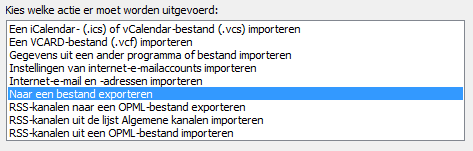
- Click Next
- The “Export to a File” screen appears
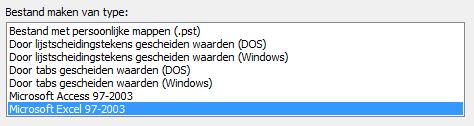
- Select Microsoft Excel 97-2003
- Click Next
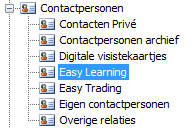
- The screen displays the selected folder to export. You can also choose a different folder if needed
- Click Next
- Specify a file name and location for the exported file

- Click Next
- The wizard will confirm what will be exported

- You can choose which fields to export if you don’t want all fields
- Click Map Custom Fields

- Finally, click Finish
- The contacts are now exported to an Excel file