
Fill series in Excel
Filling a series in Excel is often used to create lists. A key feature of a list is the use of numbering or months. These types of data — also known as series — are recognized by Excel. This way, you don’t have to manually enter each number or month; Excel fills them in automatically.
Sample file
- Sample file: 10008 Excel 2007 Training – Filling Series
Months in a Series
When you’re entering months in a row, you don’t need to type them all manually. Just enter the first two months of the sequence. In the example below, January and February are entered.
Then follow these steps:
- Enter “January” and “February” in two adjacent cells, either next to or below each other
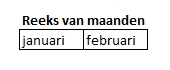
- Select the cells containing the series

- Extend the series by dragging the black square in the bottom-right corner of the selection
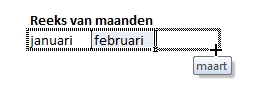
- Excel will display the months it is adding as you drag
- Release the mouse when the desired number of months is reached
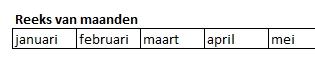
Numbers in a Series
When creating a numbered list, the same method applies.
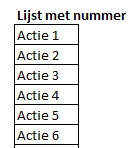
For example, a list of helpdesk tickets or action items might look like this:
- Enter the first two values of the list below each other
- In our example: “Action 1” and “Action 2”
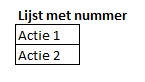
- Again, select the cells
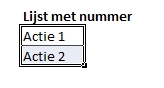
- Drag the fill handle (bottom-right corner) down until you reach the desired number of items
IMPORTANT: Avoid Using Formulas for Numbering
People often use a formula to create numbered lists in Excel, where the value in a cell increases the one above by 1. We advise against this. If the list is sorted — and lists often are — the formula still refers to the cell above, resulting in completely incorrect numbering. This causes major problems, especially with action lists or participant lists.