
Filtering Lists in Excel
10175 Filtering Lists
When Excel is used to record a list, for example a revenue overview or participant lists, filters are indispensable.
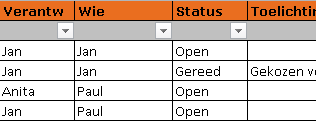
Using a filter only shows the rows that meet the specified condition. The possibilities are virtually endless, but typical use cases include:
- Action lists, where you only want to see the open tasks, or just the tasks assigned to you
- Participant lists, allowing you to filter those attending the event, or those who haven’t responded yet so you can send a reminder
Requirements for Working Efficiently with Lists
- Ensure that data is placed in a continuous block, no empty columns in between
- Make sure all cells in the rows and columns are filled, otherwise Excel won’t recognize cells below a blank one as part of the list
Position of the Filters
- You can add filters to the first row where the column headers are
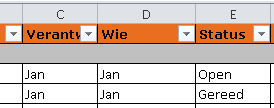
- The downside is the filter button may overlap the column title. You can fix this by widening the column, but adjusting list widths can be tricky
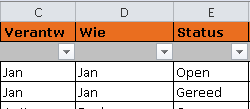
- We recommend adding a second row and giving it a different color to clearly indicate where the filters are
- This also saves space for the dropdown (filter button)
Add Filter to Lists
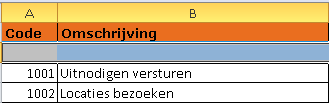
- Select the cells where the filters should appear
- In our example: cells B2 through H2
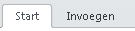
- Select the tab >> Home
- Go to group >> Editing
- Choose >> Sort & Filter
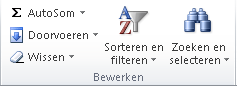
- Choose >> Filter

- The filters are now added to the list
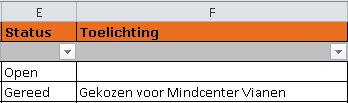
- Don’t forget to save your document.
Shortcut Key for Filters in Excel
- There’s also a keyboard shortcut for this feature in Excel
- Shortcut: CTRL+SHIFT+L
- Want to discover even more shortcuts?
- Go to: Excel shortcuts
Clear Filters
Note that there’s a difference between clearing filters and removing filters. Clearing resets all selections but keeps the filtering option enabled. This is the most common case. Removing filters (see next section) disables the filtering functionality entirely.
If filters are active, you can clear them all at once:
- Go to Tab >> Home
- Go to group >> Editing
- Choose >> Sort & Filter
- Choose >> Clear
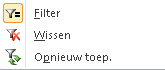
- If the option >> Clear is grayed out, no filters are currently applied
Remove Filters
Removing filters is easy:
- Go to Tab >> Home
- Go to group >> Editing
- Choose >> Sort & Filter
- You’ll see that filters are active
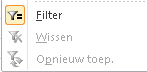
- Choose >> Filter