
Freeze excel headers
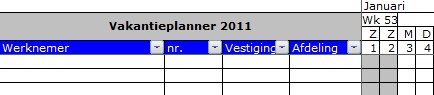
When an Excel worksheet contains many rows that extend beyond a single screen or printed A4 page, it’s often difficult to match the data with the correct column headers. The solution is simple: freeze the titles in your Excel document. This can be set both for on-screen use and for printing.
Option: Freeze Panes
The feature in Excel that allows you to lock the top and/or left part of a worksheet is called: Freeze Panes. By freezing titles in Excel, the data scrolls beneath the headers, making it always clear which column the data belongs to. If your overview is wider than one page, it’s also smart to freeze the leftmost columns, so you can always see which employee or category each row refers to.
Example
When using a vacation planner, for instance, the Excel worksheet contains many rows with employee names and many columns for the dates. In this case, you would freeze the rows with the days and also the column(s) with the employee names.
How to Freeze Panes On-Screen
- Open an Excel worksheet
- In this example, we’re using a vacation planner
- Jan Jansen has 5 days off somewhere, and you want to see exactly when that is
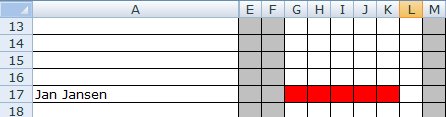
- Select the cell below the rows and to the right of the columns you want to freeze
- Go to the View tab

- Navigate to the Window group
- Choose Freeze Panes

- Select Freeze Panes from the dropdown
- The columns to the left and rows above the selected cell are now frozen
How to Repeat Titles When Printing
To ensure that the titles repeat on each printed page, this needs to be set in the Page Layout settings.
- Select the Page Layout tab

- Click on Print Titles

- Set which rows and/or columns should repeat on each page
- You can set this by clicking the icon next to the input field
