
Google spreadsheets titels
Freeze headers in Google Sheets
In lists with column headers, you often want to keep them visible at all times. Freezing the top rows in Google Sheets is called Freeze, and this is how you use it.
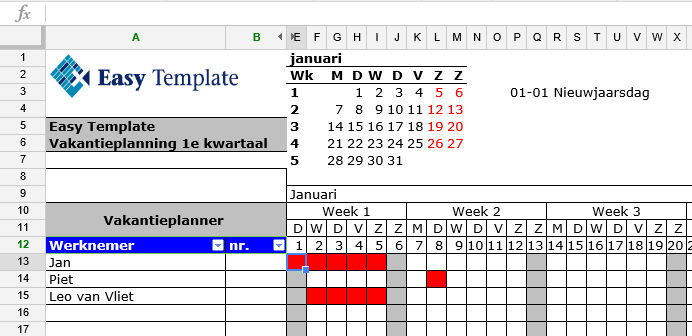
Example file
In our example, we use a vacation planner. Rows contain data per employee, and columns represent the days. We want the first columns and top rows to remain visible when scrolling. Freezing headers in Google Sheets ensures that the content scrolls under the fixed headers.
How to freeze panes on screen
- Open a spreadsheet in Google Sheets
- In this example, we use a >> Vacation Planner
- Leo van Vliet has 4 days off, but you want to see when exactly

- Select the cell that should remain fixed
- In our example, that is >> D12
- Go to View >> Freeze
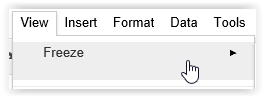
- Select >> Up to current row (12)
- This keeps rows 1 through 12 fixed

- Next, freeze columns A through D
- Go to >> View >> Freeze >> Up to current column (D)

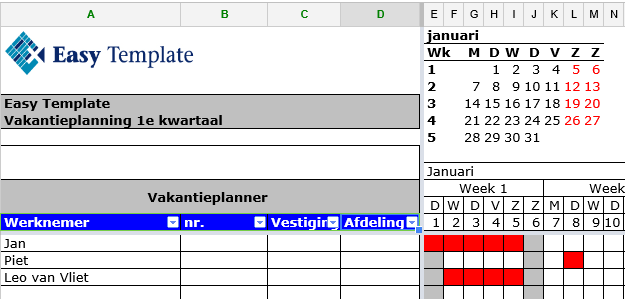
- Now both the left columns and top rows are frozen, allowing you to scroll without losing track of your data
When to use
When a spreadsheet has many rows and is longer than a single screen or page, it can be hard to see which data belongs to which column. Freezing headers keeps your view organized.