
Captions for Images
In documents with many images, it’s best to number them. This way you can refer to these images in the text, such as figure 1.
To clarify this, we take a piece of text with an associated image.
The example below has no reference to a number and the image also has no number.

Same example but now with a reference
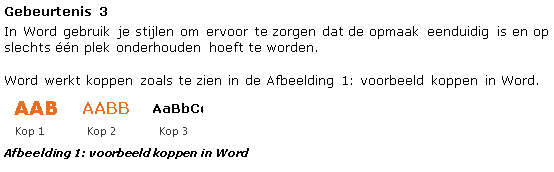
Example file
Try out these methods yourself
Video tutorial
A video tutorial is also available for this tip

Procedure
- Select an image
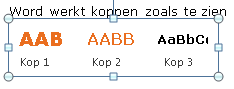
- Right-click on the image
- Choose >> Insert Caption

- The caption dialog box will open
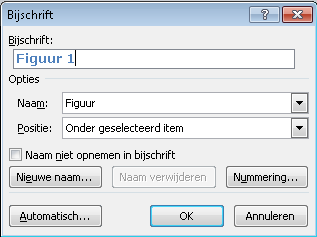
- The result will be shown in the >> Caption field
- In one example we added a colon and a space after figure 1

- Later we decided we didn’t want to call the images figure 1, etc., but simply Image 1
- This option is not available under Options yet

- Therefore, we create a new label by clicking >> New Label
- Type the text “Image” and click >> OK

- Under Position you can choose to put the caption above the image, but this is uncommon.
- You can adjust the numbering if you want, but for this example we keep it simple
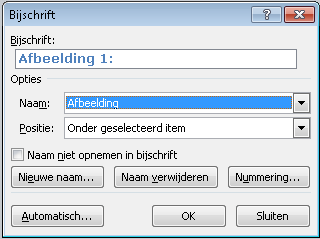
- Click >> OK to confirm
- Below the image, it now says >> Image 1
- Add the name of the image

Caption Style
Word now applies a style to the captions. You can control this style in the Styles >> Caption.
How to modify styles is not covered in this topic. But know that it’s possible to give all captions the same formatting.
Cross-reference
In the text, you can link the caption of the image using a cross-reference. The beauty of the cross-reference is that when the caption text changes, the reference in the text updates automatically.
The result: