
Input Fields in Word
One of the options to indicate where data should be filled in a Word document is to add input fields to the document.
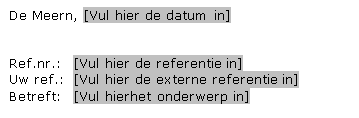
Advantages of input fields:
- They are clickable
- You can jump from field to field using the F11 key
- Immediately fillable, so you don’t need to delete old text first. This saves time
Old method of input
In many documents and templates, the data to be filled in is indicated with brackets or “<<“
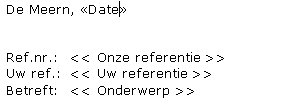
The disadvantage is that the old text must first be selected before entering the data.
Method to insert input field
- Open the >> Word document
- Go to Tab >> Developer

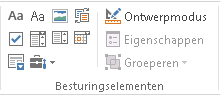
- Go to Group >> Controls
- Click on >> Legacy Tools

- In this example, the input fields from Word 2003 are deliberately chosen. This may sound odd, but the input fields from Word 2007-2013 are less practical in practice. Navigating between input fields with F11 does not work, you can’t see what still needs to be filled in, etc.
- Choose >> Text Form Field
- An input form field is now inserted in the document
- This field has no text yet. That is fine if it is obvious what should be entered in the field

- Right-click on the field >> choose >> Properties or double-click the field
- The window with >> Text Form Field Options opens
- Enter the text to be shown in the document, for example “Enter name here”
- To visually indicate it is an input field, put brackets ([ and ]) before and after the text
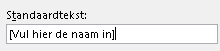
- Remove the content in the >> Bookmark field
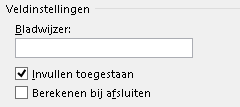
- Click >> OK
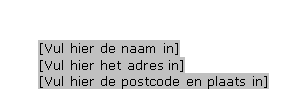
- The document now shows the input field for the name
- By copying this field to other places and then changing the name, you create a template with input fields. You can navigate through the fields using F11. When the fields are filled, the grey shading disappears and the text is replaced
NOTE
It is wise to add input fields to documents saved as templates. If you insert input fields in a normal Word document, you risk the fields being overwritten in the base document.
When useful
This option is useful in templates for letters, faxes, contracts — basically any documents where short data entries are required.
When not useful
Do not use this option if the values to be entered must be limited to a certain number. In that case, it is better to use a dropdown list in Word.
Making the Developer tab visible
If the >> Developer tab is not visible, you can show it by performing the following steps.
- Click >> File

- Click >> Options

- Select >> Customize Ribbon
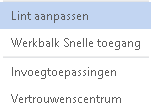
- Under >> Customize the Ribbon, choose >> All Tabs

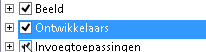
- Check the option >> Developer
- Click >> OK
- The >> Developer tab is now visible in Word