
Insert date in Word
In many documents — such as letters, faxes, and quotes — a date is included. Just be careful that the date doesn’t change when reopening the document later.
This instruction will show you how.
Suppose you’re creating a quote on January 12. The date should not change if the document is opened again a month later. Follow the steps below in your Word document or Word template.
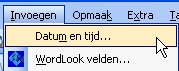
- In the menu, go to >> Insert >> Date and Time
- A window appears showing available date formats
- Select the desired format and click >> OK
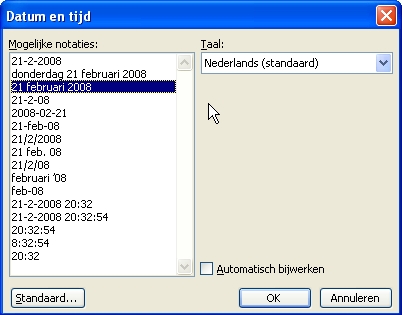
- Make sure the checkbox for >> Update automatically is turned off