Insert logo as background
Inserting an image into a Word template isn’t difficult, but placing a logo in a fixed position aligned perfectly on every page can be trickier. Not anymore after reading this explanation.

Logo Properties
You can use any image as a logo, but keep the following points in mind:
- Preferably use the logo in JPG, PNG, or TIFF format
- Avoid BMP files—they’re very large and will unnecessarily increase the size of your documents (in MBs)
- Make sure the logo is already the correct size so you don’t have to resize it in Word
- Reducing a logo wastes storage space
- Enlarging a logo reduces quality and makes it blurry
- Use at least 150 dpi
Positioning Logos in Headers or Footers
A Word template has headers and footers. By placing a logo in one of these areas, it will appear on every page.
Steps to Insert Logo into Header
- Open the header by double-clicking the top of the page

- Or go to the menu tab >> Insert
- Then choose the group >> Header & Footer
- Click >> Header

- Select >> Edit Header

- Word is now in header editing mode
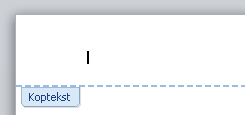
- An extra tab is now active >> Design

- In the Insert group, click >> Picture
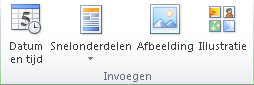
- Select your logo from the file explorer
- Click >> Insert
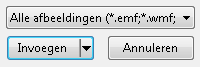
- The logo is now in the header
- But it’s not yet in the correct position
Place Logo Behind Text
- Make sure the logo is not in line with the header text, but placed behind it
- Right-click the logo and choose >> Wrap Text

- Then select >> Behind Text

- You can now freely drag the logo into position
- However, it’s difficult to align it precisely with the margin or a fixed position
Set Logo Position Precisely
- Right-click the logo and choose >> Size and Position

- Select tab >> Position
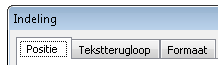
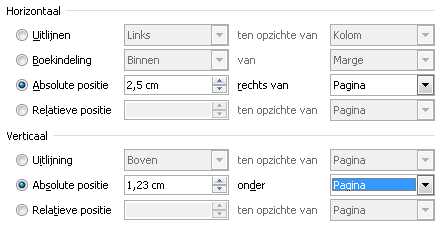
- This screen shows various options to adjust the position
- I personally prefer to set the position relative to the top-left corner of the page
- Ensure both horizontal and vertical positions are set to absolute
- For horizontal alignment, choose >> Page
- For vertical alignment, choose >> Page
- Once the logo is positioned correctly, go to the tab >> Design, in the group >> Close and choose >> Close Header and Footer