
Keyboard Shortcuts in Outlook 2010
Generally, we use the mouse far too often to perform certain actions. For (almost) every task, a keyboard shortcut or key combination is available.
Outlook Keyboard Shortcuts – 10,000 Fewer Mouse Clicks
You don’t need to memorize every function key. But if everyone starts using keyboard shortcuts for the 10 most common actions, it will save tens of thousands of mouse clicks per year.
How to Use Keyboard Shortcuts
- Identify a frequently used action for which you’re not yet using a shortcut
- Focus on one keyboard shortcut per week
- Let’s use replying to an email as an example
- The shortcut for this is CTRL+R (press CTRL and R simultaneously)
- Use this shortcut consistently instead of the mouse for one week
- Within a short time, sometimes even in a day, the shortcut will become part of your routine
- Repeat the process for a different action the following week
Overview of Outlook Keyboard Shortcuts
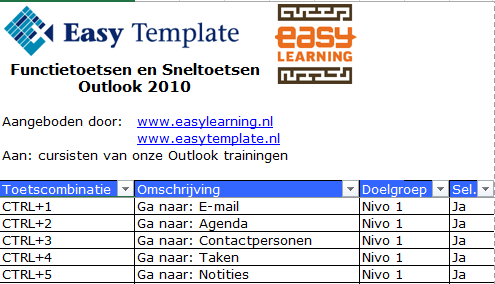
Easy Learning, in collaboration with Easy Template, has created an overview of the most commonly used keyboard shortcuts and key combinations. This allows you to identify which actions you perform most often.
Video Tutorial: Using Keyboard Shortcuts in Outlook 2010

A Few Examples
CTRL N – Create New Item
This shortcut can be used throughout Microsoft Office. It creates a new document or item in the currently active program. If your Inbox is open in Outlook, CTRL+N will create a new email message.
CTRL R – Reply to Email
Replying to email is probably the most common action in Outlook.
Tip: Memory aid – R stands for Reply
CTRL F – Forward Email
We forward emails every day. It’s a good idea to use the shortcut CTRL+F for this too.
Tip: Memory aid – F stands for Forward
CTRL ENTER – Send Email
We usually use the mouse to send an email. But there are multiple ways to send a message using a keyboard shortcut:
- ALT+Z
- CTRL+ENTER
How ALT+Z Works
- Ensure the cursor is in the message body of the email
- Hold down the ALT key and then press Z
- The email will now be sent
How CTRL+ENTER Works
- Ensure the cursor is in the message body of the email
- Hold down the CTRL key and then press ENTER
- The email will now be sent
NOTE
If you press and release the ALT key without pressing Z, the command will not work.