
Mail Merge Email with Excel and Word
Sending out a mailing using Word and Excel is perfectly doable, even for users with basic knowledge. In this article, we’ll explain step-by-step how to create and send a mail merge—either by post or by email.
Step 1: Creating an address list
- Open Microsoft Excel
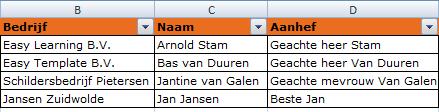
- Create a spreadsheet with the fields you want to use in your mailing
- Also include any fields you want to filter by, even if they won’t be printed
- Add a column for the salutation to prevent formatting issues or extra spaces
- Save the file

- If you plan to send the mailing via email, make sure to include a column with the email addresses
- To save time, you can download this sample file
Step 2: Creating the mailing
- Open your standard letter (template) in Word
- Write the body content of your mailing

- The fields from your address list still need to be inserted
Step 3: Link the address list and insert merge fields
- Click where you want to insert a merge field
- For example, we’ll insert the salutation field

- Go to the Mailings tab

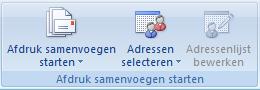
- Select Start Mail Merge
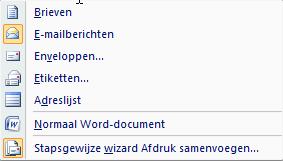
- Choose Step-by-Step Mail Merge Wizard
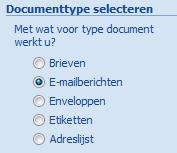
- The wizard will open on the right-hand side
- For email mailings, choose E-mail messages
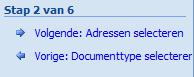
- Click Next: Starting document

- Choose Use the current document
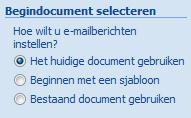
- Click Next: Select recipients
- Since we’ve already entered addresses in Excel, select Use an existing list
- Click Browse to locate and connect the Excel file
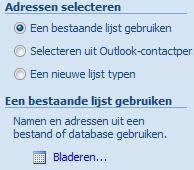
- Locate and select your Excel file

- If prompted to confirm the data source, choose OLE DB Database Files and click OK
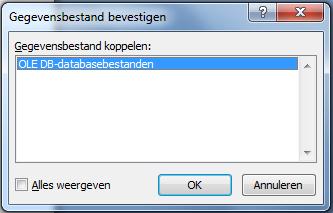
- Select the worksheet that contains your data. It’s helpful to rename sheets and remove empty tabs beforehand
- In this example, we choose Sheet1$

- Word will now display the selected data
- Click OK
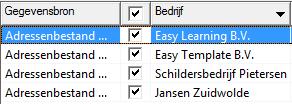
- Click Next: Write your email message

Step 4: Insert merge fields in Word
- Now insert the merge fields from the Excel sheet
- Select the spot in the document where you want to place a field
- Click Insert Merge Field

- You’ll see the available Excel fields
- Select the correct field
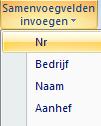
- The merge field will appear between special characters in the document

- Repeat this process for all necessary fields
- To preview the results, click Preview Results

- Once all fields are inserted, click Next: Preview your email

- You’ll now see the merged result
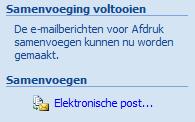
- Click Next: Complete the merge

- Click Electronic Mail
- Select the field containing the email addresses from the Excel sheet
- Add a subject line for the email
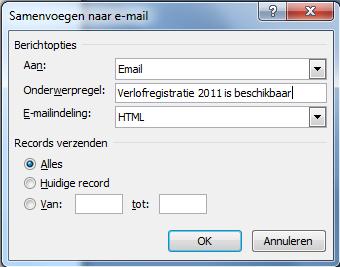
- Click OK
- The mailing will be sent via Outlook