
Make Folders Available in Favorites
Recognize this? You’re working on a specific project and constantly using the same documents. But every time, you have to search for the files again. Favorites in File Explorer can solve this.
It works just like your favorite websites, but for folders on your own computer or network.

How to add a folder to Favorites
- Open the >> Windows File Explorer
- Make sure the Favorites section is visible
- Navigate to the folder you want to add to Favorites
- Open that folder in File Explorer
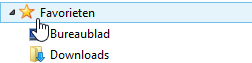
- Hover your mouse over >> Favorites
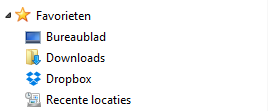
- Right-click and choose >> Add current location to Favorites
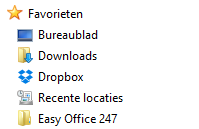
- The folder is now visible under Favorites when you open File Explorer
Remove a folder from Favorites
- Removing a folder from Favorites is simple
- Right-click on the folder
- Select >> Remove

Folder order
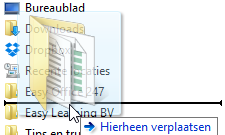
- By clicking and dragging with the left mouse button, you can rearrange the folder order in the Favorites list
When it’s useful
This is useful when you’re working with certain files and folders for a limited time. Projects are a great example. Once finished, you can remove the folder from Favorites. Don’t worry — only the shortcut is removed, not the actual folder.
When it’s less useful
If you use certain files and folders all year long, it’s better to pin them within the apps you work with, like Word or Excel.

Instructional video
This topic is also available as a video tutorial