
Hidden Text in Word
By marking text as “hidden” in Word, you can make sure it is not printed. This article explains when and why this is useful.
Procedure
The procedure is simple:
- Select the text you want to hide
- Check that it will not be printed
Practical Example
An example is the easiest way to understand this.
You need to fill in a form based on an interview with a client. The client also has the form, but you want to add additional notes for yourself without printing them. By marking these notes as “hidden,” you can see them on your screen but they won’t appear when printed.
Work Instruction
- Select the text that should not be printed
- Tip: include the blank line after the paragraph, otherwise an extra line will appear when printing

- Go to tab >> Home

- Select group >> Font
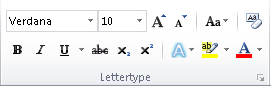
- Click the arrow at the bottom-right corner of the Font group
- TIP: You can also press CTRL+D
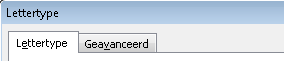
- The Font settings window opens
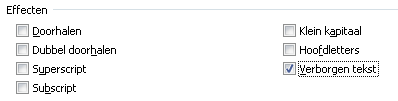
- Check the option >> Hidden text under Effects
- Click >> OK
- Depending on your Word settings, the text will now be shown or hidden on screen
Show Hidden Text
To make hidden text visible again in Word, do the following:
- Go to >> File
- Choose >> Options
- The Word Options window opens
- Select >> Display
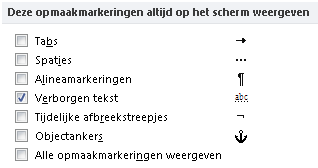
- Go to section >> Always show these formatting marks on the screen
- Select the option >> Show hidden text
- Click >> OK
- The hidden text is now visible on the screen
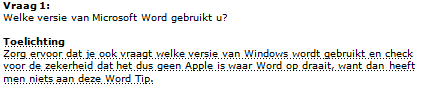
- Hidden text is indicated by dotted underlines
Do Not Print Hidden Text
- Immediately check that the text will not be printed

- TIP: use Print Preview to save paper