
Multi-level Bullets
Bullets in Word lists can sometimes differ per document. This is easy to prevent by setting them up correctly once.
Problem
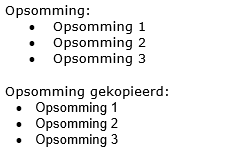
Often due to copying and pasting from other documents, list bullets can differ.
The solution
Create a style in Word for making lists. Then ensure all lists are linked to this style. Within a list, you can also have a sublist.
Instructional Video
Create a new list style first
- Open the template
- Go to tab >> Home

- Choose >> Multilevel List
- Then at the bottom of the window choose >> Define New List Style
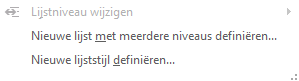
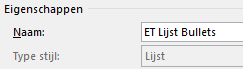
- Give the list a name. Tip: start with a letter combination that is also used for the styles and include that it is a list in the name.
- In our example, that is >> ET List Bullets
- Set the font

- Then choose >> Format

- In the dropdown menu, choose >> Numbering
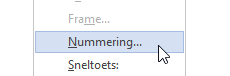
- The numbering window appears. Here we will adjust the tabs
Modify a multilevel list
- Click >> More if not all options are visible

- The definition dialog is now fully open
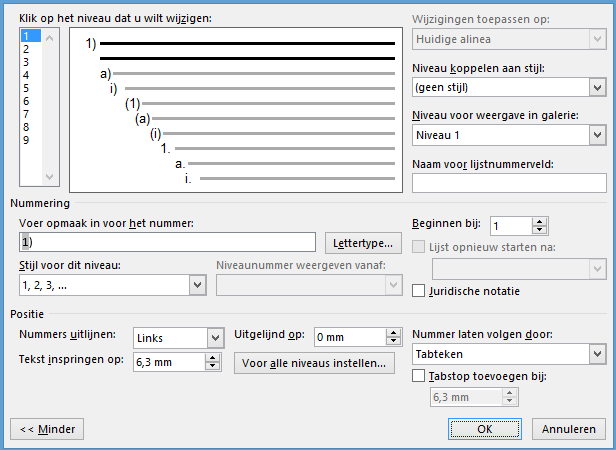
- All fields on the screen relate to the level selected on the left side of this screen
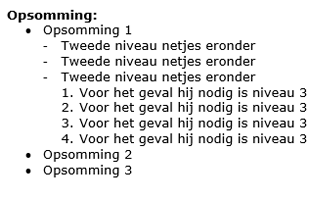
- In our example, we want to set the list for 3 levels: the first is a bullet, the second level a dash, and the third level a number
- The list usually indents per level, Word defaults to 6.3 mm, but in our example, we want steps of 5 mm
Level 1 settings
- Select on the left >> Level 1

- Choose at >> Number style for this level the bullet character
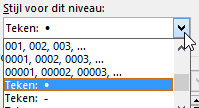
- You will now see that in the field >> Enter formatting for number a bullet is filled in

Bullet position
- Set >> Aligned at to 5 mm
- Change the value at >> Text indent at to 10 mm
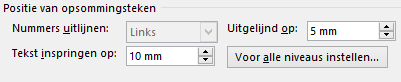
- In our example, we want the list to indent 5 mm every level. Press the button >> Set for all levels to apply this margin to all levels
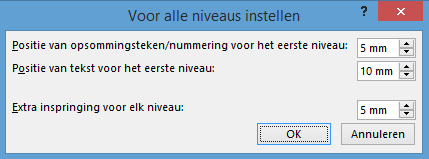
- Press >> OK
Level 2 settings
- Select on the left >> Level 2

- Select the dash character if not already set
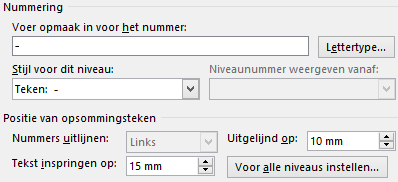
- Check if bullet position is correctly set
- Aligned at 10 mm
- Text indent at 15 mm
Level 3 settings
- For other levels you want to use, do the same. Set the correct character and make sure the position is correct.