
Organize contacts in Outlook
Many users synchronize their mobile phone with their computer. However, you may want to distinguish between personal and business contacts. In Outlook, you can create folders for different contact groups.
Outlook Instruction Tip
- In the Outlook menu, go to >> Folder List
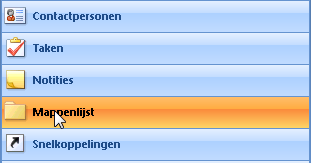
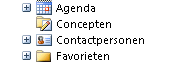
- Select the folder >> Contacts
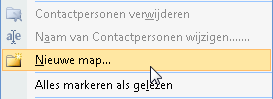
- Right-click and select >> New Folder
- Enter a name for the new folder, for example >> Personal Contacts
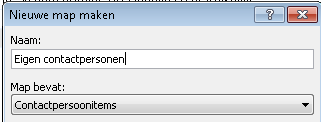
A new folder has now been created under the Contacts folder. This allows you to store the full list of email addresses and contact details. By moving less frequently used contacts into a separate folder, you keep your list clean without losing any data.
Practical Example
- Open a new >> Email Message
- Click >> To
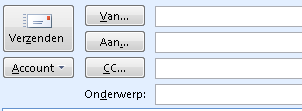
- The contacts from the default Contacts folder are shown. At the top of the screen, you can select a different folder.

- Select for example >> Personal Contacts
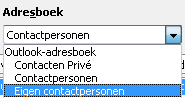
- The contacts from >> Personal Contacts are now shown.
All your contacts are still available, but now you’ve moved a specific group into another folder (perhaps one you don’t use as often).
Mobile Phone Tip
Many mobile phones have a maximum limit on the number of contacts that can be stored. Using this method, you can make sure only the most relevant contacts in the Contacts folder are synchronized. Phone numbers you want to keep but call less frequently can be moved to a different contacts folder.