
Keep Text Together in Word
When working with text that includes company names, phone numbers, or email addresses, you want to make sure they stay together on the same line.

For certain information, it’s more practical to keep it on the same line. For example, a company name consisting of more than one word, or a currency amount with a euro sign. In Microsoft Word, you can do this by inserting a nonbreaking space. When a sentence no longer fits on one line, Word automatically continues on the next line. Most of the time, that’s fine but you don’t want a company name on one line and Ltd. (or B.V.) on the next. This can be prevented by inserting what’s called a nonbreaking space. A nonbreaking space ensures that specific words always stay together.
Example: Company Name
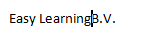
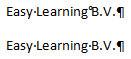
In proposals and contracts, a company name is often written in full, such as Easy Learning B.V. Because there’s a space between “Learning” and “B.V.”, the latter may move to the next line when the current one is full.
- Type the text as you normally would

- Place your cursor where the nonbreaking space should be inserted
- Remove the regular space
- Go to the Ribbon >> Insert
- Click on >> Symbol in the tab >> Symbols
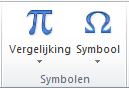
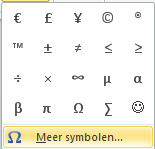
- Select >> More Symbols
- Click the tab >> Special Characters
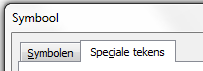
- Select >> Nonbreaking Space
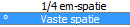
- Click >> Insert

- Finally, click >> Close to return to your document.
- At first glance, nothing seems to have changed, but a different type of space has been inserted in the background. Repeat these steps if the company name contains more than two words that must stay together.
Nonbreaking Hyphen
The same issue can occur with phone numbers. You don’t want the area code on one line and the subscriber number on the next. Follow the same steps as for inserting a nonbreaking space, but this time choose the special character >> Nonbreaking Hyphen 
Just Press Enter?
You could simply press Enter to move the phone number to the next line, but if any text is added later, you’ll have to manually fix it again. That’s a waste of time—and you’ll often overlook it.