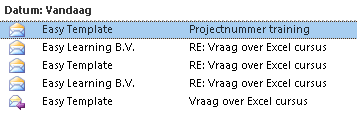
Outlook Tip: Show Messages from Conversation
We’ve been mailing back and forth. How can you keep all messages from the same conversation (subject) neatly together?
Messages are often spread across your inbox, sent items, and possibly already archived. Outlook has a feature to show all messages with the same subject line.
How to search related messages
- Select an email message, for example in your Inbox
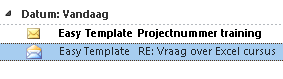
- Right-click to open the context menu
- Choose the option >> Search Related Messages
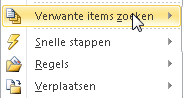
- Select >> Messages in this conversation

- Outlook now searches all folders for emails with the same subject and displays them in the results
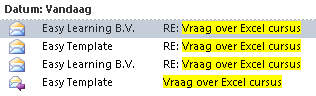
- The results screen also shows the folder where each message is stored
- In our example, there are 2 messages in Sent Items, 1 in the Inbox, and another already in the customer folder
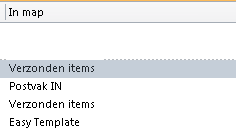
- By selecting the messages that are not yet in the customer folder, you can move them all at once
- TIP: This option is also very useful to quickly clean up your “Inbox“
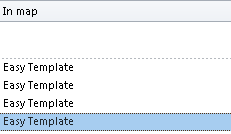
Keep the subject consistent
The downside of this feature is that Outlook groups messages based on the subject line. In our example, we described a request for an Excel course. After some back and forth, there’s a confirmation. Although the confirmation is a reply to the original message, the subject was changed.
Outlook will not recognize this message as part of the same conversation.
Solution: Changing the subject
By creating a folder structure in Outlook, for example a folder “Customers” with subfolders for each project/request, you can keep everything organized.