
Paste Special – Values
With Paste Special in Excel, not everything is copied you can choose which data to paste. This could be just formatting, but most commonly it’s values.
Paste Special >> Values
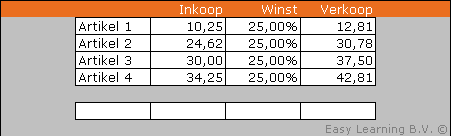
In this example, the selling price is calculated based on the purchase price and a profit margin. The cells with the selling prices (G7 through G10) contain formulas.
If you copy and paste these cells elsewhere, the formulas are copied along. Suppose you want to paste these selling prices into a price list—it would be too much work to manually retype all the values one by one.
Using Paste Special, you can choose to paste only the values—the results of the formulas. Keep in mind that from that moment, there’s no link to the original cells. So, if a purchase price changes, the calculated selling price will update, but the price in your price list will remain unchanged.
Example file
Especially for Excel tips, working with an example makes it easier to understand.
Step-by-step example
- Open the example file
- Select cells G7 through G10
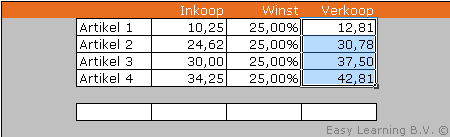
- Copy these cells
- Go to the destination where the values should be pasted (in this example, cell E17)
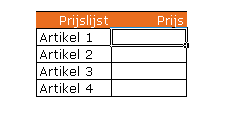
- Right-click
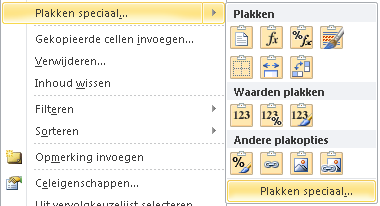
- Select the >> 123 button (Paste Special: Values)
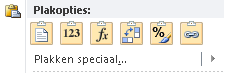
- Or choose >> Paste Special >> Paste Special
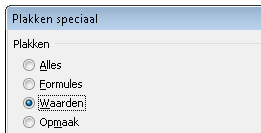
- Then choose >> Values
- Finally, click >> OK
Keyboard shortcut for this option
Much faster is using the keyboard shortcut for this option: CTRL+ALT+V