
Protect Excel Worksheets
General Protection
Before explaining how Excel file protection works, it’s important to note that these passwords can be cracked.
Therefore, use Excel’s protection features mainly to prevent accidental changes rather than for full security.
For example, if Excel is used to create a quotation that includes hidden and protected cells for calculations, make sure to send the quotation as a PDF.
In Excel, you can protect individual worksheets or the entire workbook (Excel file).
Protecting a Worksheet in Excel
To protect a worksheet (a tab in Excel), follow the steps below:
- Select the worksheet by clicking any cell within it
- Go to the Review tab

- In the Changes group, choose Protect Sheet

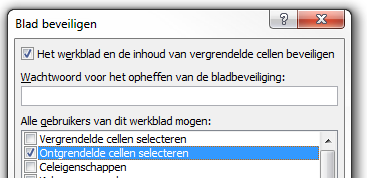
- Excel displays a dialog box where you can specify the level of protection
- If a user should not be allowed to do anything, uncheck all boxes. If the user should only view the document, consider sending it as a PDF
- Enter a password to prevent unauthorized changes to the protection settings. You may also choose to leave the password field empty
- For confirmation, Excel will ask you to re-enter the password
Using Excel as a Form
Excel can also be used as a form. In that case, you don’t want to protect all cells—only the ones containing formulas or calculations. In Excel, you can specify for each cell whether it should be locked when the worksheet is protected.
An Example to Illustrate This
- Download the sample file
- In this example, only the exchange rate can be modified. The prices in Euros are automatically calculated
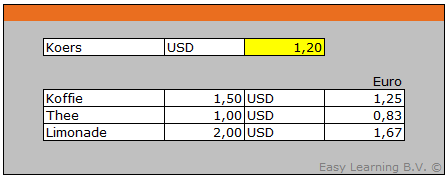
- So when protecting the worksheet, make sure to:
Select the cell that should remain editable - Right-click the selected cell and choose Format Cells (CTRL+1)
- Go to the Protection tab
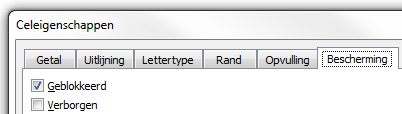
- Uncheck Locked so that this cell remains editable when the sheet is protected
- When protecting the sheet, make sure the option Select unlocked cells is enabled
- Protect the worksheet and verify that only the specified cell (the exchange rate) is editable
Protecting an Excel Workbook
Follow the steps below:
- To protect an entire Excel workbook
- Go to the Review tab
- In the Changes group, select Protect Workbook
- Choose Protect structure and windows
- Select the option Protect Workbook for: Structure and Windows
- Enter a password (optional)
- If a password is entered, Excel will ask you to confirm it
- Click OK to apply the protection