
Quick steps fast archiving
Besides reading email, archiving is often the most time-consuming task. With the Quick Steps feature, archiving becomes a breeze.
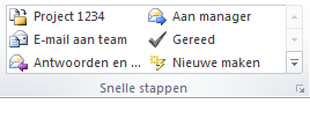
What does the Quick Steps feature do
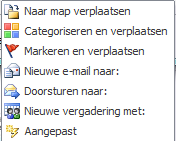
With Quick Steps, you can define what actions should be taken on an email message. When you click a Quick Step, the specified actions are applied to the selected message. These actions can include:
- Move to folder
- Categorize and move
- Flag email to:
- Forward to:
- New meeting with:
- Custom
Instructions
- Select the Home tab
- Go to the Quick Steps group
- Click the small button in the bottom-right corner of the group

- Outlook comes with some default Quick Steps
- We usually recommend deleting those default steps
- In this example, we create an action to move a message to a specific project folder
- Click >> New

- Enter a name for the Quick Step
- Keep it short but descriptive, for example >> Project 1 Archive
- Select the folder where the message should be moved
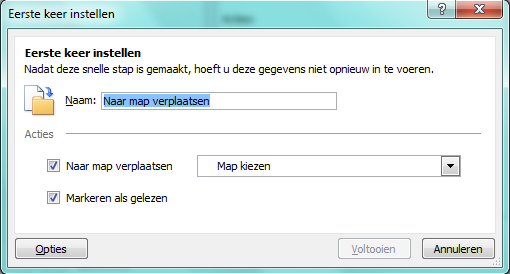
- Click >> Finish
- Create additional Quick Steps if desired, or click OK to confirm
- Your Quick Steps are now ready to use
Using Quick Steps for archiving in Outlook
- Select an email message in, for example, your >> Inbox
- At the top in the >> Quick Steps group, click the desired Quick Step
- In this example, we move the message to >> Project 1234
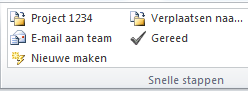
Quick Steps on an open message
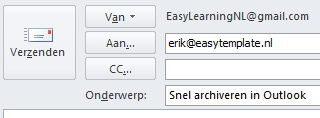
- When an email message is open, the options under >> Quick Steps are still available
- You don’t need to close the message first
- Select the >> Message tab (email must be open)
- Click the desired Quick Step
- In our example, we add the email to the archive of project 1234