
Quick steps fast email archiving
Besides reading emails, archiving is probably the most time-consuming task. With the Quick Steps feature, archiving becomes a breeze.
What does the Quick Steps option do?
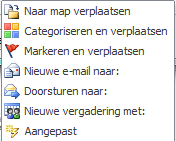
Quick Steps let you define what should happen to an email message. When you click a specific Quick Step, the corresponding action is executed on the selected message. The following actions are commonly used:
- Move to folder
- Categorize and move
- Flag and send email to
- Forward to
- New meeting with
- Custom
How to use
- Select the Home tab
- Go to the Quick Steps group
- Click the small arrow in the bottom-right corner of that group

- Outlook already has a few default Quick Steps
- We recommend deleting these default steps
- In this example, we’ll create a Quick Step that moves a message to a specific project folder
- Click New

- Enter a name for the Quick Step
- Make the name short but descriptive, e.g., Project 1 Archive
- Select the folder to which the message should be moved
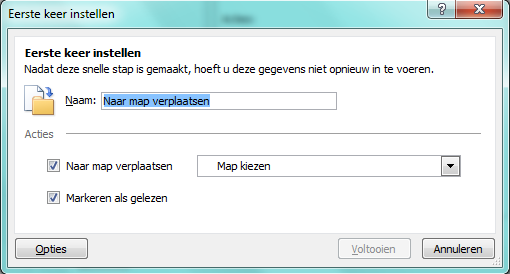
- Click Finish
- Optionally, create more Quick Steps or click OK to confirm
- Your Quick Steps are now ready to use