Remove Author in Word Templates
You might not be the first to receive a Word template from someone else. Make sure the document properties in the background are removed.
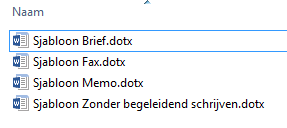
Every Word document has several properties, such as name, last saved, and size. Strangely enough, when building templates for companies, we often encounter documents with Authors and Company Names that don’t belong to that company.
How bad is it at your workplace?
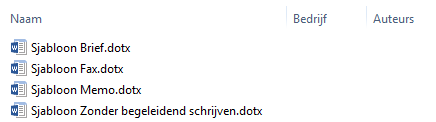
Open the templates folder or another folder on the network with many Word documents and/or Word templates. When you show more properties in that folder, you will be amazed at the jumble of names.
Procedure
- Open File Explorer
- Navigate to the relevant folder
- Right-click on the column header bar
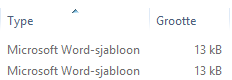
- The visible fields will be displayed
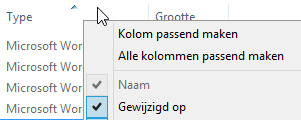
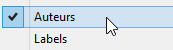
- Select Author from the list
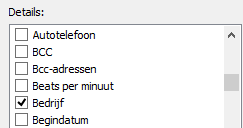
- To show Company, first choose >> More, then Company will also be visible to select
- You now see the Authors and Company names displayed in File Explorer
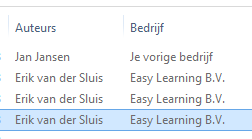
- There is a good chance some names do not belong there
Change the Author of a Document (via File Explorer)
This method applies to both a regular Word document and a Word template.
- Go to File Explorer
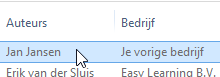
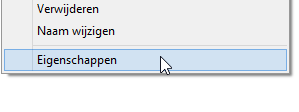
- Right-click on the document
- Choose >> Properties
The Properties window will open - Select the >> Details tab
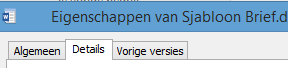
- Go to >> Author and change the value

- Another option is to remove all personal data at once
- This can be done by clicking the option at the bottom >> Remove Properties and Personal Information
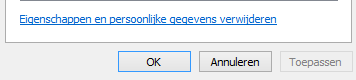
- You can then choose which data to remove
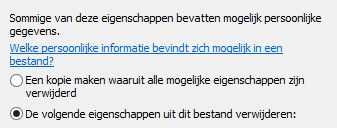
- Then click >> OK
- And once more to close the Properties window
- The result is a clean, properly cleared file