
Save a Chart as a Template
If you use charts in Excel that are shared externally, you want every chart to look consistent. Therefore, save your standard charts as templates.
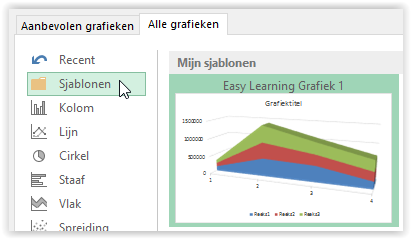
Microsoft Office continues to expand the ability to set company-wide standards once and for all. Charts are no exception.
Example File
Practical Example
Imagine you are a service provider and display charts in the final report to the client. The next time you create a chart, you want it to look exactly like the previous one.
How to Save a Chart as a Template
- Create the chart
- Right-click in the >> chart area

- Select >> Save as Template
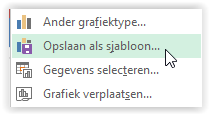
- Excel will suggest the default template folder
- Choose a name
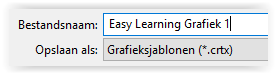
- Click >> Save
- Note that Excel defaults to your personal template folder. It is more logical to save templates, including chart templates, in the Workgroup Templates folder. This folder contains templates available for the entire company.
Applying a Saved Chart
The next time you need to create a chart in Excel, you can use the saved template.
Procedure
- Select the data for your chart
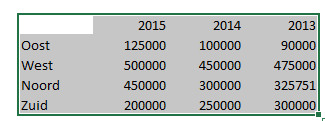
- Go to the >> Insert tab

- Go to the >> Charts group
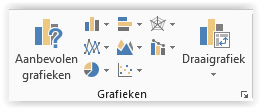
- Select >> Recommended Charts
- Go to the >> All Charts tab
- Select >> Templates
- The saved templates are displayed
- Click >> OK